
Volume Discount
Show "buy more, save more" offers under cart items, like buy 2 save 10% and buy 3 save 15%.
Where to find it: in the cart editor, click Volume Discount in the Cart Editor Settings list.
Volume discounts reward shoppers for buying more of the same item. Offers like "Buy 2 save 10%" show under qualifying cart items. Tapping one sets the item's quantity to that tier, and the discount is applied at checkout.
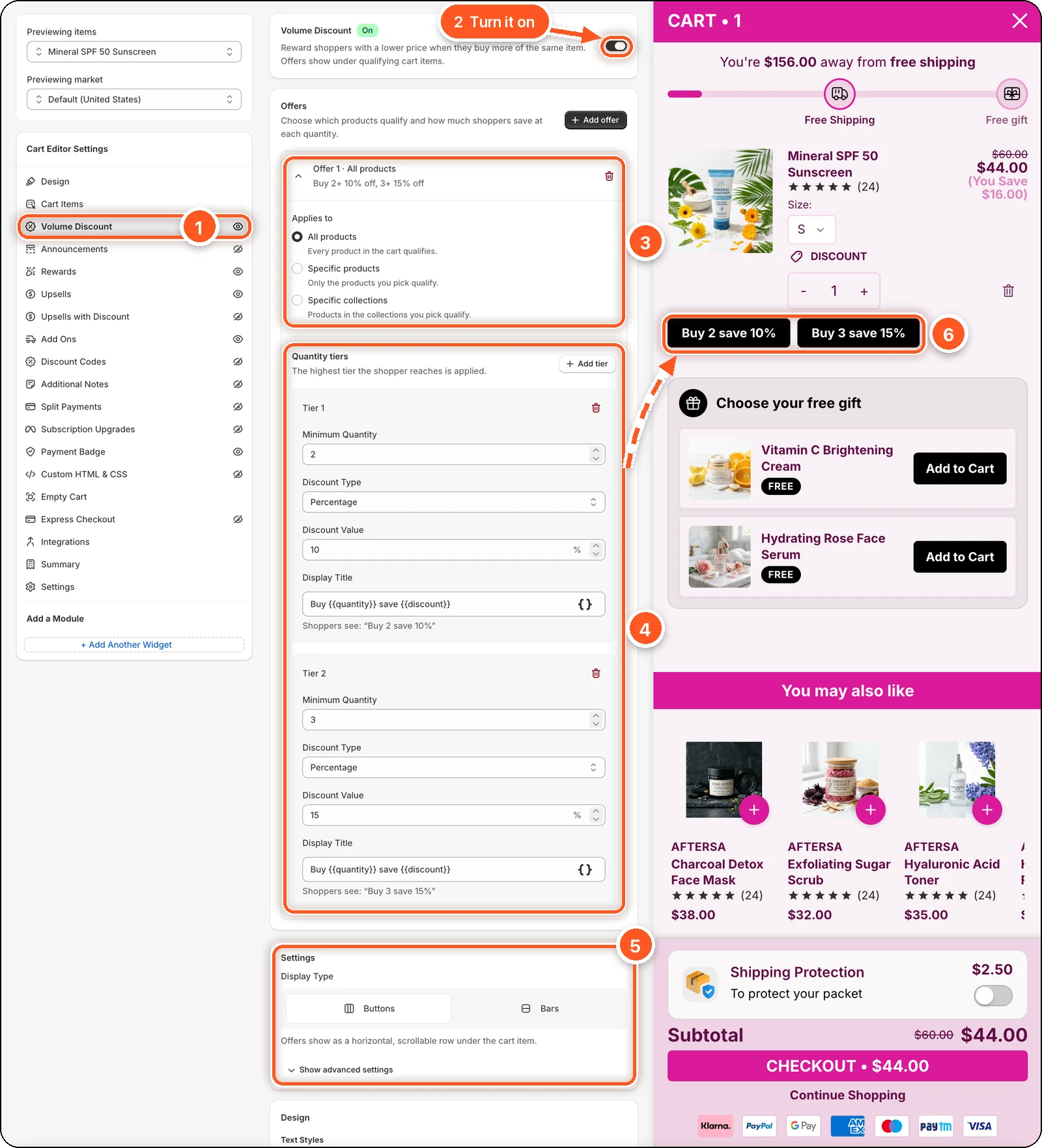
In this screenshot Volume Discount is switched on with one offer for All products: buy 2 save 10%, buy 3 save 15%. Look under the item in the cart preview (6): each tier shows as a button.
| # | Section | What it's for |
|---|---|---|
| 1 | Volume Discount tab | Open this tab. The eye icon shows volume discounts are on. A crossed-out eye means they're off. |
| 2 | Volume Discount switch | Turns volume discounts on or off. The badge next to the title reads On or Off. |
| 3 | Offer 1 · All products | One offer. Its summary reads "Buy 2+ 10% off, 3+ 15% off". Applies to picks which products qualify. |
| 4 | Quantity tiers | One tier per step: Minimum Quantity, Discount Type, Discount Value, and Display Title. Here, Tier 1 is 2 items for 10% off and Tier 2 is 3 items for 15% off. |
| 5 | Settings | Show offers as Buttons or Bars. |
| 6 | Offers in the cart preview | Each tier shows under the cart item, using its Display Title. |
The Design card sits below Settings. See Design.
While the switch is off, the badge reads Off and you can't add offers. See Turn features on and off.
Create an offer
Switch on Volume Discount at the top. Offers can only be added while it's on.
Click Create your first offer (later, Add offer).
Under Applies to, choose All products, Specific products, or Specific collections. For the last two, click Select products or the collection button and pick them.
Set up the Quantity tiers. Each tier has a Minimum Quantity, a Discount Type (Percentage or Amount off), and a Discount Value. Click Add tier for the next step up.
Check the Display Title. The default Buy {{quantity}} save {{discount}} shows as "Buy 2 save 10%". The "Shoppers see" line under the field previews it.
Click Save.
Example
| Tier | Minimum Quantity | Discount | Shoppers see |
|---|---|---|---|
| Tier 1 | 2 | 10% | Buy 2 save 10% |
| Tier 2 | 3 | 15% | Buy 3 save 15% |
| Tier 3 | 5 | 25% | Buy 5 save 25% |
The highest tier the shopper reaches is applied.
Offer rules
- You can have up to 10 offers.
- Only one offer can use All products.
- When several offers match an item, the most specific wins: specific products first, then collections, then all products.
- An offer marked Needs attention is missing its products or has a tier error.
- Amount off is taken off each unit.
Settings
Display Type:
- Buttons — offers show as a scrollable row under the item. The default.
- Bars — offers are stacked one under another.
Click Show advanced settings to choose How the discount is applied:
- Automatic (recommended) — the app applies the discount at checkout.
- Manual — the cart only shows the offers. You create a Shopify discount code yourself.
Design
| Setting | Default |
|---|---|
| Text Color, Font Size, Font Weight | White, 14, Bold |
| Background Color | Black |
| Border Color, Border Radius, Border Width | none, 5, 0 |
Colour templates on the Design tab don't change these.
Good to know
- Quantities count per cart line. Two sizes of the same shirt are two lines, so they don't add up toward a tier.
- A tier of 0 is skipped at checkout. Give every tier a discount above 0.
- The preview shows your first offer under every item, whatever it targets. Check the real result on your store.
- Volume discounts don't apply to free gifts or to items added from Upsells with Discount.
- Subscription items are left out by default. Change this in Settings.
- Discounts update when you save the live cart. On a draft, they start working when you publish it.