
Design
Set the drawer's background, the style of its buttons, and the header with the cart title or your logo.
Where to find it: in the cart editor, click Design in the Cart Editor Settings list. It's the tab the editor opens on.
The Design tab sets the overall look of the drawer: its colours, the buttons, and the title bar at the top. It's always on.
In this screenshot the Title Bar (3) has a pink background (#D81B9A) and white text, so the title bar at the top of the preview (5) is pink. Button Background Color uses the same pink, which you can see on the checkout button (6).
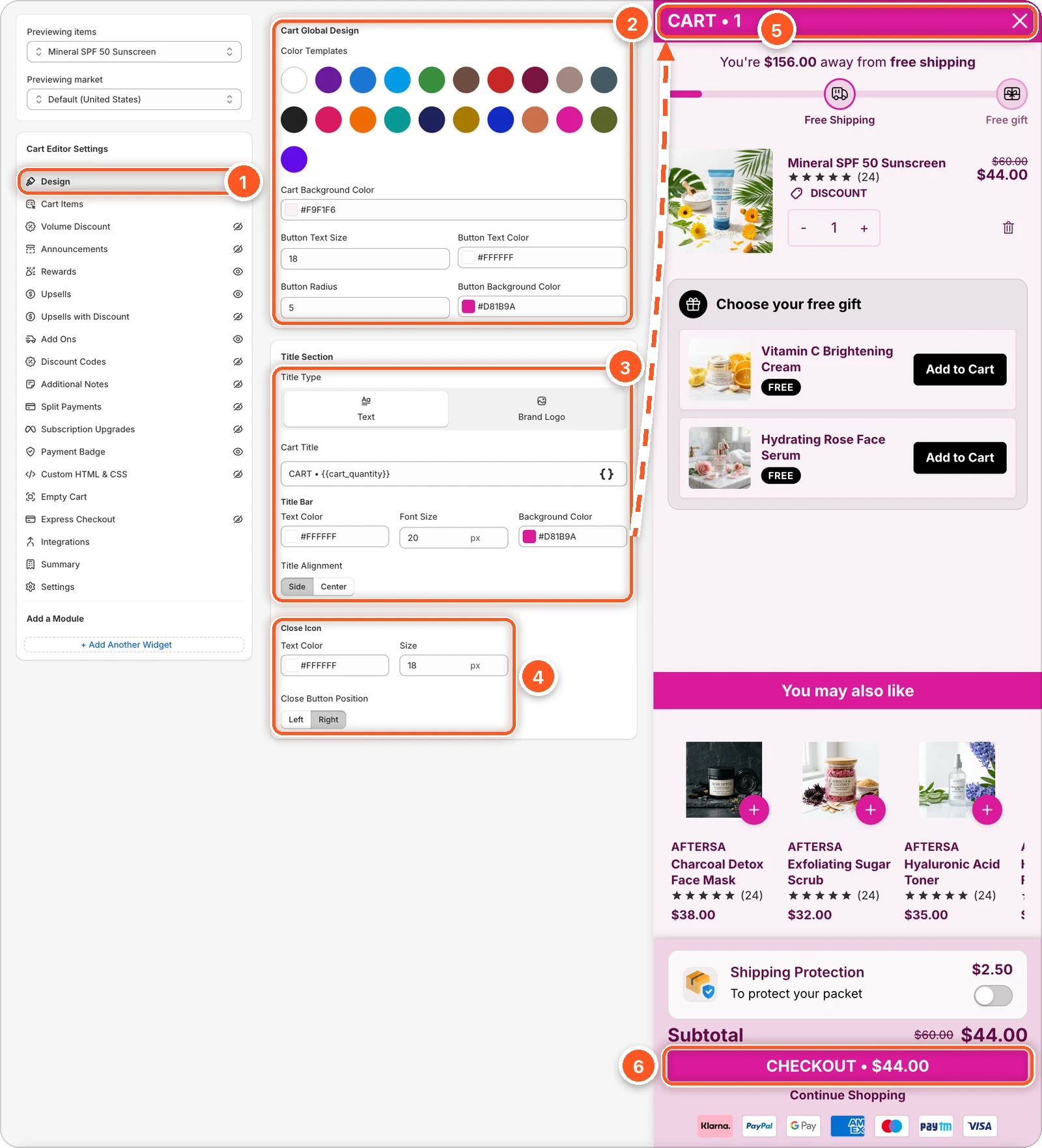
| # | Setting | What it changes |
|---|---|---|
| 1 | Design tab | Open this tab in the sidebar. |
| 2 | Cart Global Design | Colour templates, the drawer's background colour, and the checkout button's style (upsell buttons use it too unless they have their own colours). |
| 3 | Title Type, Cart Title, Title Bar, Title Alignment | Text or logo at the top, the title's words, the title bar's text colour, font size and background, and where the title sits. |
| 4 | Close Icon and Close Button Position | Colour, size, and side of the × that closes the drawer. |
| 5 | Title bar in the preview | Where your title changes show up. |
| 6 | Checkout button in the preview | Uses the button style from Cart Global Design (2). |
Cart Global Design
Color Templates
The row of coloured circles applies a ready-made colour scheme to most of the drawer in one click: backgrounds, text, buttons, progress bars, and badges.
A colour template replaces your colours
Clicking a circle overwrites the colours in most tabs at once, with no confirmation. If you'd already chosen colours you like, click Discard in the save bar to get them back. Colour templates don't change Upsells with Discount or Volume Discount; set those colours in their own tabs.
A good order of work: pick a colour template first, then fine-tune individual colours in each tab.
Background and buttons
| Setting | What it does | Default |
|---|---|---|
| Cart Background Color | The drawer's background. | White |
| Button Text Size | Font size of buttons, in px. | 18 |
| Button Text Color | Text colour of buttons. | White |
| Button Radius | Corner rounding of buttons, in px. 0 is square. | 5 |
| Button Background Color | Fill colour of buttons. | Near black |
These button settings style the checkout button. Upsell buttons use them too, unless you've given upsell buttons their own colours in the Upsells tab.
Title Section
Choose text or a logo
Under Title Type, click Text to show a title, or Brand Logo to show your logo.
With Text, type your title in Cart Title. The default is CART • {{cart_quantity}}, which shows as "CART • 2" when there are two items. Click the { } button to insert Cart quantity.
With Brand Logo:
Click Add Logo and choose your logo image.
Wait for Uploading logo... to finish. Your logo appears in the preview.
Drag Logo Size (14 to 48 px, default 32) until it looks right.
Title Bar
| Setting | What it does | Default |
|---|---|---|
| Text Color | Colour of the title text (Text only). | Near black |
| Font Size | Size of the title, in px (Text only). | 20 |
| Background Color | Colour of the whole bar. | White |
Alignment and close button
- Title Alignment (Logo Alignment in logo mode): Side puts the title at the edge opposite the ×. Center centres it.
- Close Icon: the Text Color and Size (px, default 18) of the ×.
- Close Button Position: Left or Right (default).
Where are the checkout button settings?
The subtotal, checkout button text, and continue-shopping link are in the Summary tab. The drawer's width and slide direction are in Settings.