
Payment Badge
Show the payment methods you accept as a row of icons, or one banner image, at the bottom of the cart.
Where to find it: in the cart editor, click Payment Badge in the Cart Editor Settings list.
Payment badges show shoppers which payment methods you accept, like Visa, Mastercard, PayPal, and Apple Pay. They sit at the very bottom of the drawer, under the checkout button, and help shoppers feel safe paying.
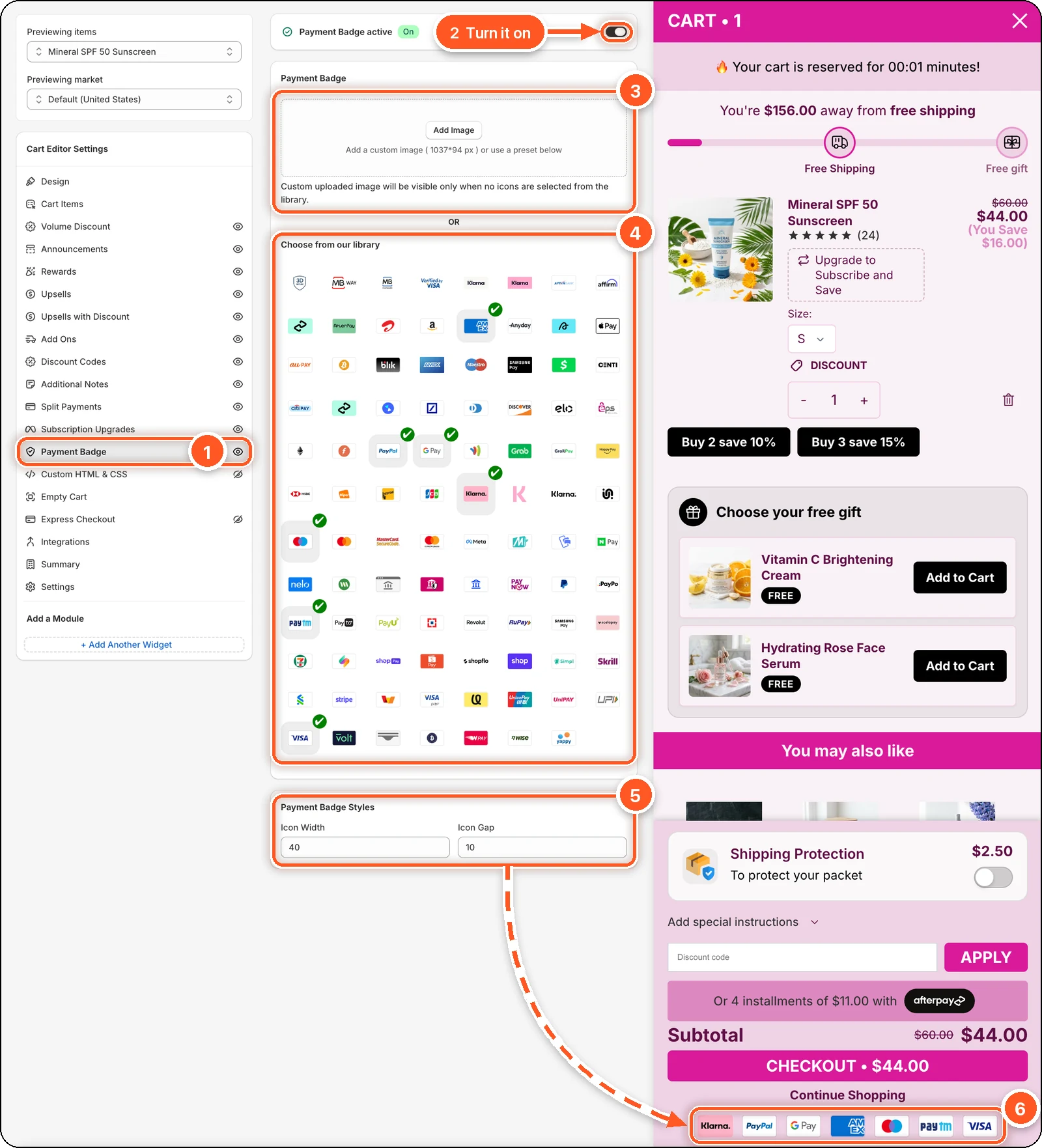
In this screenshot Payment Badge is switched on and seven icons are ticked in the library (4). You can see them as a row at the very bottom of the cart preview (6), under Continue Shopping.
| # | Section | What it's for |
|---|---|---|
| 1 | Payment Badge tab | Open this tab. The eye icon shows the module is on. A crossed-out eye means it's off. |
| 2 | Payment Badge switch | Turns the badges on or off. When it's on, the card reads Payment Badge active with a green On badge. |
| 3 | Add Image | Upload your own banner image instead of icons. |
| 4 | Choose from our library | Click the payment icons you accept. A green tick marks each one you've picked. |
| 5 | Payment Badge Styles | Icon Width and Icon Gap for the icons. |
| 6 | Badges in the cart | Your icons, in the order you clicked them, under the checkout button. |
Show payment icons
Switch on Payment Badge at the top.
Under Choose from our library, click each payment method you accept. A green tick marks the ones you've picked. They show in the order you click them.
Adjust Icon Width (default 40) and Icon Gap (default 5) under Payment Badge Styles. Both go up to 50. The screenshot uses an Icon Gap of 10.
Click Save.
Use your own image instead
You can upload one wide image instead, such as a "Secure checkout" banner. The recommended size is 1037 × 94 px.
Click Add Image and choose a .jpg or .png file. Uploading can take up to a minute.
Untick every library icon. Your image only shows when no icons are selected.
Click Save.
Your image is shown at the full width of the drawer. Icon Width and Icon Gap don't apply to it.
Upload stuck?
If the upload spinner keeps turning for more than a minute, reload the page and try again with a smaller .jpg or .png.
Good to know
- Only show methods you actually accept at checkout.
- Turn the module on and pick at least one icon or upload an image. With nothing picked, nothing useful shows.
- The eye icon in the sidebar only shows whether the module is on. Use the switch inside the tab to turn it on or off.
- Only
.jpgand.pngimages can be uploaded. Other file types show an error.