
Translate the cart
Translate every text in the cart drawer into your store's other languages, by hand or with auto-translate.
Where to find it: click Translate in the cart editor header. On a draft, it's the translate icon next to Publish.
Shoppers see the drawer in the language they browse your store in. Every text you write in the editor, such as titles, button labels, and reward messages, can have a translation for each language your store has in Shopify.
In this screenshot, German is picked and nothing is translated yet (0 of 20 translated), so every row has a warning triangle (6). Rewards is switched on in this cart, so its texts are listed under Rewards.
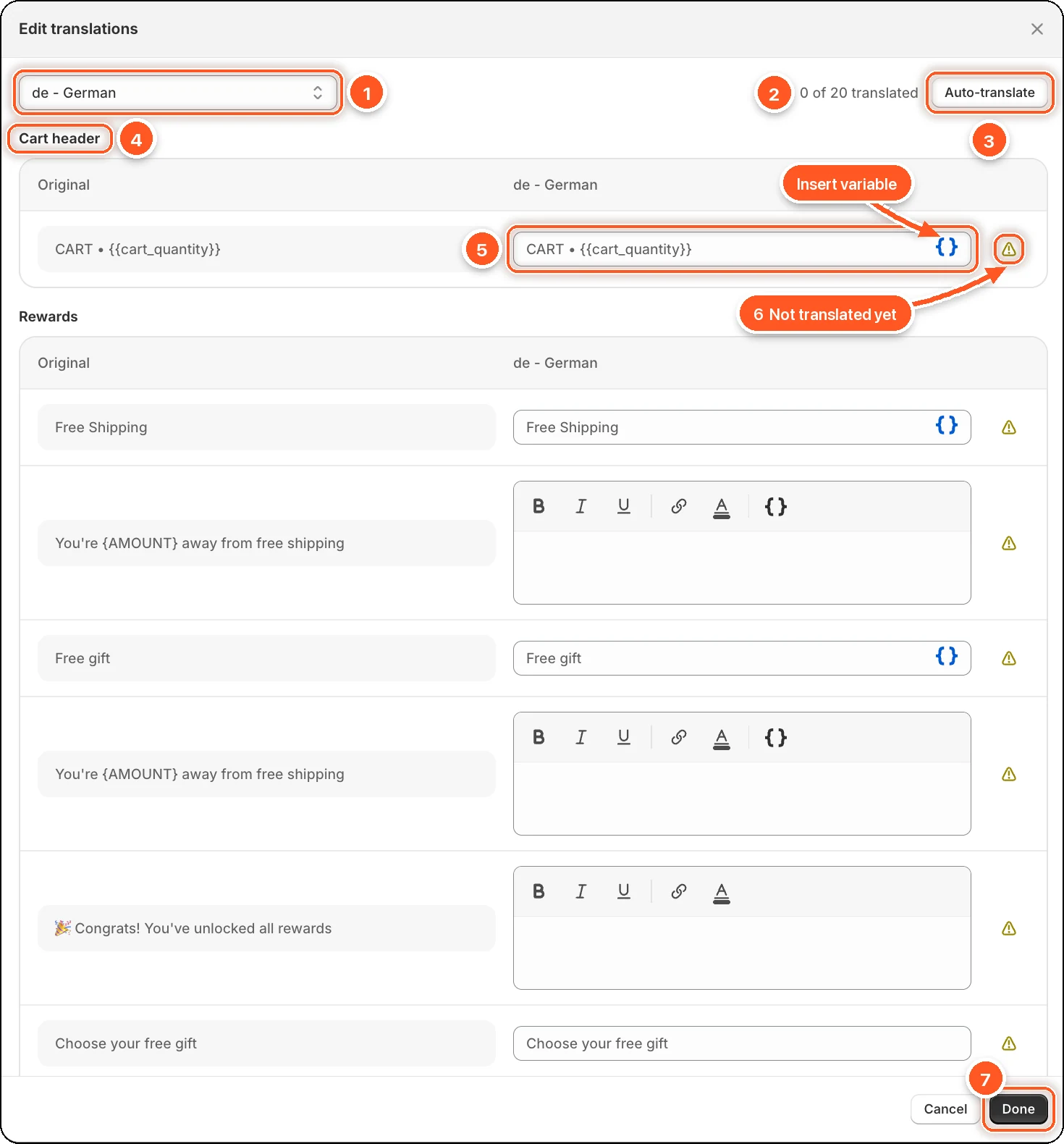
| # | Part | What it's for |
|---|---|---|
| 1 | Language | Pick the language to translate into. Published languages are listed first; unpublished ones say (unpublished). |
| 2 | Progress | How many texts are translated in this language, for example 0 of 20 translated. |
| 3 | Auto-translate | Fills every untranslated text with a Google translation for you to review. |
| 4 | A section | Texts are grouped by where they appear: Cart header, Rewards, Upsells, and so on. Each section shows the Original next to your language. |
| 5 | Your translation | Type the translation in the field on the right. Grey text in an empty field is just the original, shown as a hint. The { } button (Insert variable) adds a variable such as {{cart_quantity}}. |
| 6 | Not translated yet | The warning triangle shows on every row that's empty or still the same as the original. |
| 7 | Done | Puts your translations into the editor. You still need to click Save. |
Translate the cart
In the editor, click Translate in the header (the translate icon on a draft).
Choose a language from the menu at the top left.
Type each translation in the right-hand field, or click Auto-translate and then check the results.
Click Done.
Click Save in the Shopify save bar. Translations aren't live until you save.
Good to know
- Only modules that are on are listed. If you don't see the Upsells texts, turn Upsells on first, then open Translate again.
- Variables stay as they are. Leave anything in braces, like
{{cart_quantity}}or{AMOUNT}, exactly as written. Auto-translate never translates them. To add one, click the{ }button next to the field, or in a rich text field's toolbar. Only texts that take variables have this button. - Leave a field empty to use the original. An empty translation means shoppers in that language see the original text.
- You can do several languages at once. Switch languages before clicking Done; everything you typed is kept.
- Cancel throws away what you typed in this window.
Only one language in your store?
You'll see Your store has only one language. Click Add languages to add one in Shopify's language settings, then come back.