
Add a module
Add extra widgets to the drawer — a guarantee strip, a promo banner, a delivery estimate, or a second set of discounted offers.
Where to find it: in the cart editor, click + Add Another Widget under Add a Module, below the tab list.
Modules are extra blocks you add to the drawer on top of the built-in tabs. Each one you add gets its own row under Add a Module, with an eye that shows whether it's on and a bin to delete it.
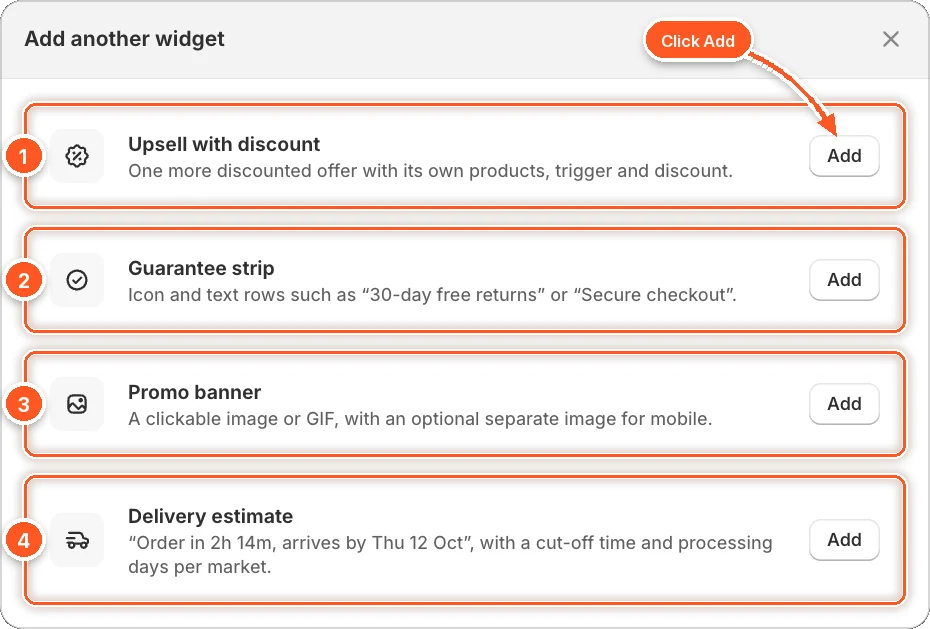
This is the Add another widget window that opens when you click + Add Another Widget. Click Add next to the one you want.
| # | Widget | What it adds |
|---|---|---|
| 1 | Upsell with discount | A second, separate set of discounted offers with its own products, conditions, and discount. |
| 2 | Guarantee strip | Icon and text rows such as "30-day free returns" or "Secure checkout". |
| 3 | Promo banner | A clickable image or GIF, with an optional separate image for phones. |
| 4 | Delivery estimate | "Order in 2h 14m, arrives by Thu 12 Oct", with a cut-off time and processing days per market. |
Add a widget
Click + Add Another Widget.
Click Add next to the widget you want. It's added under Add a Module and its settings open.
Set it up (see below). For a guarantee strip, promo banner, or delivery estimate, also choose its Position in cart.
Click Save.
The guarantee strip, promo banner, and delivery estimate each have a Placement card:
- Name — only you see it, in the editor.
- Position in cart — Top of cart, Above cart items, Below cart items, At absolute bottom, Above checkout button, or Below checkout button.
Widgets only show while the cart has items. Widgets in the same position show in the order you added them.
Guarantee strip
Short promises shoppers read right before they pay. Two to four work best.
- Items — each has an icon (Returns, Money-back guarantee, Secure checkout, Shipping, Quality, Support, Gift, Eco-friendly, Checkmark, or your own image), a Title, and an optional Subtitle. Use the arrows to reorder. Up to 6 items.
- Arrangement — Side by side (icon above text), up to three per line, or One per row (icon beside text).
- Style — background, icon, title, and subtitle colours; text and icon sizes; corner radius and border.
It starts with three items: "30-day free returns", "Money-back guarantee", and "Secure checkout".
Promo banner
A clickable image, such as a sale banner or an animated GIF.
Add a Desktop image. 1200 × 400 px works well. JPG, PNG, GIF, or WebP. You can also paste an image URL.
Optionally add a Mobile image for screens narrower than 768 px.
Enter a Link, such as /collections/sale. Leave it empty for no link.
Write an Image description (alt text) for screen readers. Describe what the banner says.
Links must start with / or https://
A link like www.mystore.com/sale stops the cart saving. Use /collections/sale or https://mystore.com/collections/sale.
Nothing shows on your store until you add an image.
Delivery estimate
Tells shoppers when their order arrives, with a countdown to your cut-off time.
- Message with countdown — shown before the cut-off. Default
Order in {{countdown}}, arrives by {{delivery_date}}. - Message without countdown — shown after the cut-off or on non-working days. Default
Order now, arrives by {{delivery_date}}. - Order cut-off time — in your store's time zone. Orders before it ship the same working day. Default 14:00. Leave empty for no countdown.
- Processing days — days before an order ships. 0 means the same day.
- Fastest delivery and Slowest delivery — delivery time in days. Use
{{delivery_range}}in the message to show both, like "Tue 10 – Thu 12 Oct". - Working days — the days you ship orders and the days the carrier delivers. Both start as Monday to Friday.
- Rules by market — give a market its own cut-off and delivery time, or hide the estimate there. Use Previewing market to check each one.
A second Upsells with Discount
Works exactly like the Upsells with Discount tab, with its own rules, discounts, and design. It's added as Upsells with Discount 2 and starts switched off. You can add one.
Delete a widget
Click the bin next to the widget under Add a Module, then Delete. To undo, click Discard in the save bar before you save.
Limits
- Up to 50 added items per cart, counting the extra Upsells with Discount.
- One extra Upsells with Discount. Once you've added it, its Add button is greyed out until you delete it.