
Announcements
Show a message bar in the cart — one message with a countdown, rotating messages, or a scrolling line.
Where to find it: in the cart editor, click Announcements in the Cart Editor Settings list.
The announcement bar sits near the top of the drawer and shows a short message, like an offer, or a countdown that tells shoppers how long their cart is reserved. It only shows when the cart has at least one item.
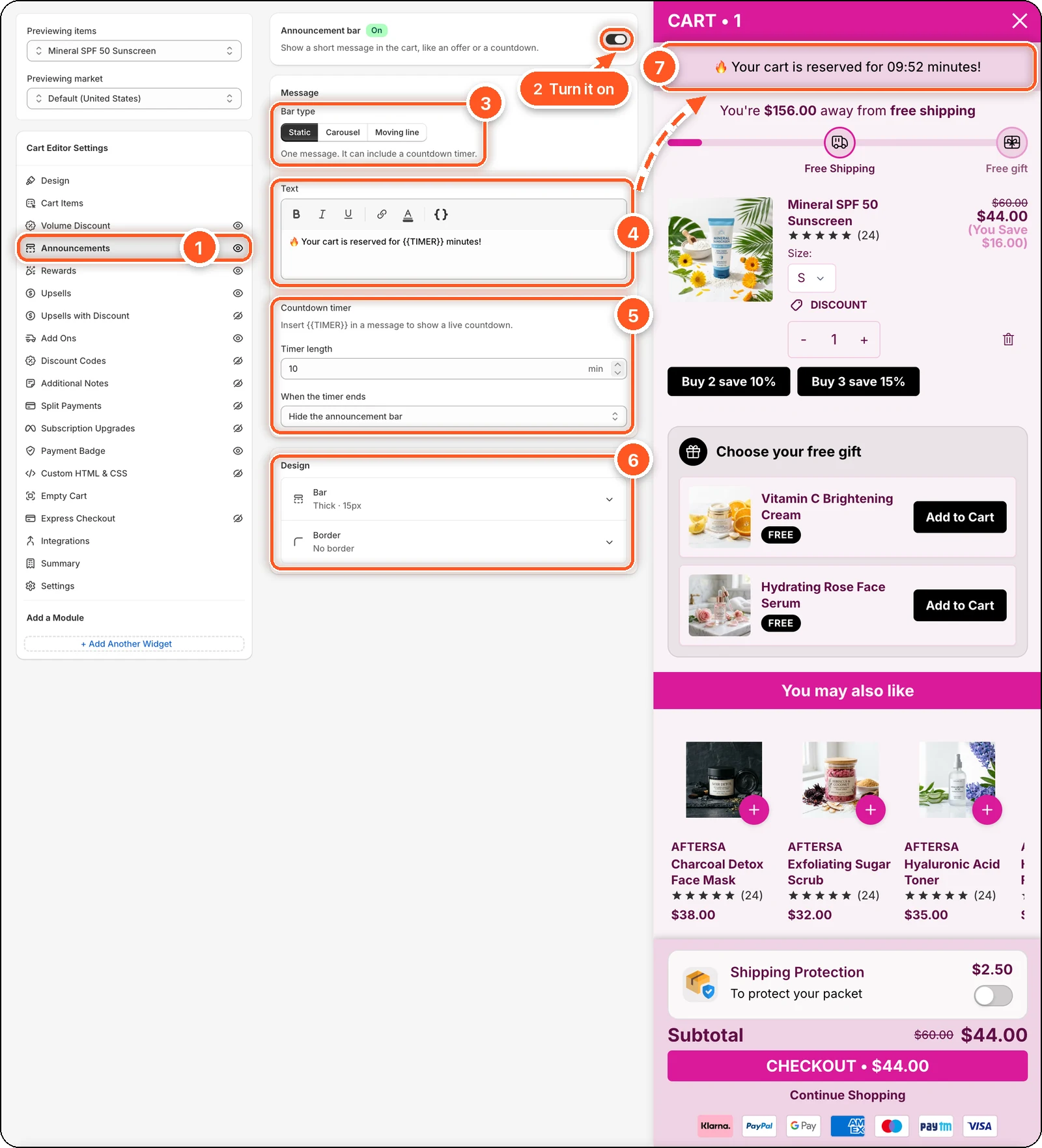
In this screenshot the announcement bar is switched on with the Static bar type and a 10-minute timer. You can see it at the top of the cart preview (7): "🔥 Your cart is reserved for 09:52 minutes!", with the timer counting down.
| # | Setting | What it's for |
|---|---|---|
| 1 | Announcements tab | Open this tab. The eye icon shows the bar is on. A crossed-out eye means it's off. |
| 2 | Announcement bar switch | Turns the bar on or off. |
| 3 | Bar type | Static, Carousel, or Moving line. |
| 4 | Text | Your message. |
| 5 | Countdown timer | Timer length in minutes and what happens When the timer ends. |
| 6 | Design | Bar (height, font size, background colour) and Border. |
| 7 | Announcement bar in the preview | What shoppers see near the top of the cart. |
Add an announcement
Switch on Announcement bar at the top.
Choose a Bar type (see below). Choose it first: switching to Static or Moving line replaces your text with that type's sample text.
Type your message in Text. Use the toolbar for bold, italic, underline, links, and text colour.
Click Save.
Bar types
| Bar type | What shoppers see | Extra settings |
|---|---|---|
| Static | One message. It can include a countdown. | — |
| Carousel | Several messages that take turns. | Add message, Rotate messages automatically (every 2 to 20 seconds), Show arrows. |
| Moving line | One message scrolling across the bar. | Scroll time (lower is faster) and Space between repeats. |
Add a countdown
A countdown creates urgency. The default Static message is "🔥 Your cart is reserved for {{TIMER}} minutes!", where {{TIMER}} counts down live.
Use Static or Carousel. Moving line can't show a countdown.
In your text, click the { } button and insert Countdown timer, or type {{TIMER}} where the time should appear.
Set Timer length in minutes. The default is 10.
Choose When the timer ends:
- Hide the announcement bar (default)
- Remove items from the cart — empties the shopper's cart. Use with care.
- Do nothing — the bar stays.
Each shopper gets their own timer, which keeps running across page loads. It starts again when their cart is emptied, or when you change Timer length. In the editor preview the timer never runs its end action, so test it on your store.
Design
Click Bar or Border to open it. Each row shows its current values, for example Thick · 15px or No border.
- Bar — Height (Slim, Normal, or Thick), Font size (15), and Background color.
- Border — border colour, a width for each side, and a corner radius for each corner.
- Arrows — (Carousel with arrows) icon and background colour.
Text colour is set in the text editor's toolbar, not in Design.