
Add Ons
Offer one-tap extras in the cart, such as shipping protection, gift wrap, or a warranty.
Where to find it: in the cart editor, click Add Ons in the Cart Editor Settings list.
Add-ons are small extras shoppers switch on in the cart footer, each with an image, a title, a price, and a toggle. Switching one on adds it to the cart; switching it off removes it. Add-ons are never added for the shopper automatically.
There are two kinds:
- Shipping protection — a small fee that protects the order against loss, theft, or damage. Its price can go up with the cart value.
- Product add-ons — any product from your store, like gift wrap or an extended warranty.
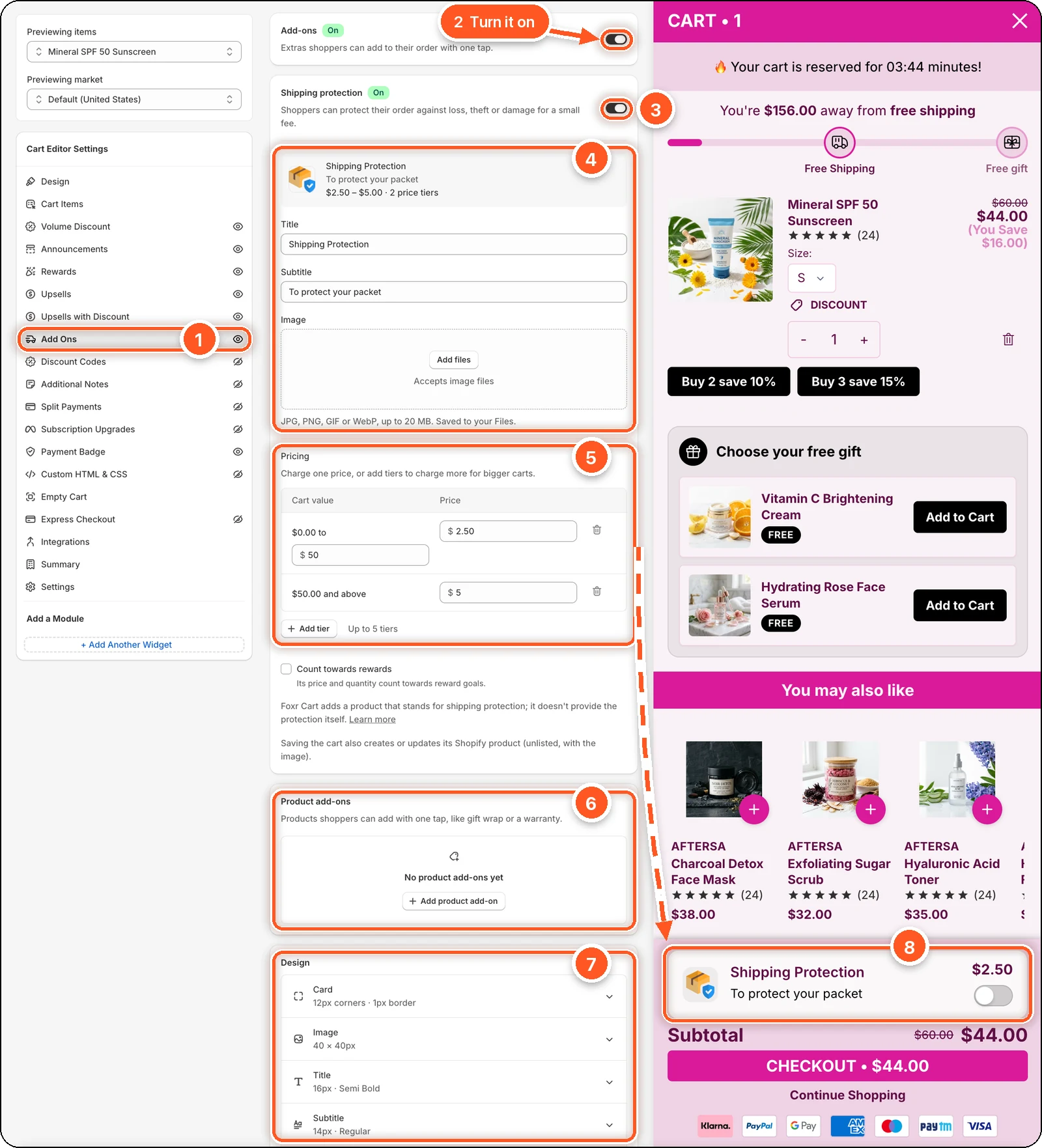
In this screenshot Add-ons and Shipping protection are both switched on. The cart is $44.00, under $50, so the Shipping Protection row in the preview (8) shows the $2.50 fee. Its switch stays off until the shopper taps it.
| # | Section | What it's for |
|---|---|---|
| 1 | Add Ons tab | Open this tab. The eye icon shows add-ons are on. A crossed-out eye means they're off. |
| 2 | Add-ons switch | Turns every add-on on or off. |
| 3 | Shipping protection switch | Turns the shipping protection fee on or off. Turning it on also turns on Add-ons. |
| 4 | Shipping protection details | A summary ("$2.50 – $5.00 · 2 price tiers"), then the Title, Subtitle, and Image shoppers see. |
| 5 | Pricing | The fee for each cart value. Here: $2.50 from $0.00 to $50, and $5 for $50.00 and above. |
| 6 | Product add-ons | Products shoppers can add with one tap. None are added here. |
| 7 | Design | The look of every add-on row. |
| 8 | Add-on row in the cart preview | Image, title, subtitle, price, and switch, just above the subtotal. |
Set up shipping protection
Switch on Shipping protection. This also turns on Add-ons at the top.
Check the Title ("Shipping Protection") and Subtitle ("To protect your packet"). Change the Image if you like: JPG, PNG, GIF, or WebP up to 20 MB.
Under Pricing, set the price. One price is used for Any cart value; the default is 2.50.
To charge more for bigger carts, click Add tier. The first click splits it into "$0.00 to $50" and "$50.00 and above", and the new top band gets double the price. Change where a band ends in the field under its "to" line, and set each Price. You can have up to 5 tiers. The last tier is always "and above".
Tick Count towards rewards if the fee should count toward reward goals.
Click Save.
Pricing tiers example
| Cart value | Price |
|---|---|
| $0 to $50 | $2.50 |
| $50 to $100 | $5.00 |
| $100 and above | $7.50 |
When the cart moves into another band, the fee changes on its own.
Saving creates a Shopify product
Shipping protection is a real product in your store. Saving creates or updates it as an unlisted product with your title and image, one variant per price tier. Foxr adds the fee; it doesn't insure the order itself.
- If you change the product's prices in Shopify, those prices win the next time you open the editor.
- If the product is deleted in Shopify, the editor tells you when you open it. Click Save to create it again.
Add a product add-on
In Product add-ons, click Add product add-on.
In Shopify's product picker, choose one product and tick the variants to offer.
In the window that opens, change the Title (leave empty to use the product's title) and add a Subtitle if you like.
If you offered more than one variant, pick the Variant selected first. Shoppers can switch to the others in the cart.
Click Add add-on, then Save in the Shopify save bar.
Use the pencil on an add-on to edit it, or the bin to delete it. Delete is immediate; click Discard in the save bar to undo it.
Design
The design applies to every add-on, including shipping protection. Click a part to open it:
| Part | Settings |
|---|---|
| Card | Background, border colour, border width, corner radius (12). |
| Image | Width and height (64 × 64 on a new cart; the cart in the screenshot uses 40 × 40), image fit, background, corner radius, border. |
| Title | Colour, font size (16), font weight (Semi Bold). |
| Subtitle | Colour, font size (14), font weight (Regular). |
| Price | Colour, font size (16), font weight (Bold). |
| Switch | On and off colours. |
Good to know
- The Add-ons switch at the top overrides everything. If it's off, no add-ons show, even when Shipping protection says On.
- Product add-ons don't have their own on/off switch. To stop offering one, delete it.
- If a product add-on's product is deleted or sold out, it's skipped in the cart.