
Custom HTML & CSS
Add your own HTML at chosen spots in the drawer, and your own CSS to restyle any part of it.
Where to find it: in the cart editor, click Custom HTML & CSS in the Cart Editor Settings list.
For anything the other tabs don't cover: add your own HTML, like a banner or a message, at eight spots in the drawer, and write CSS to restyle any part of it.
For people comfortable with code
Your HTML and CSS go live exactly as written when you save. Nothing checks them for mistakes, so a broken tag can break the drawer's layout. Test on a draft first.
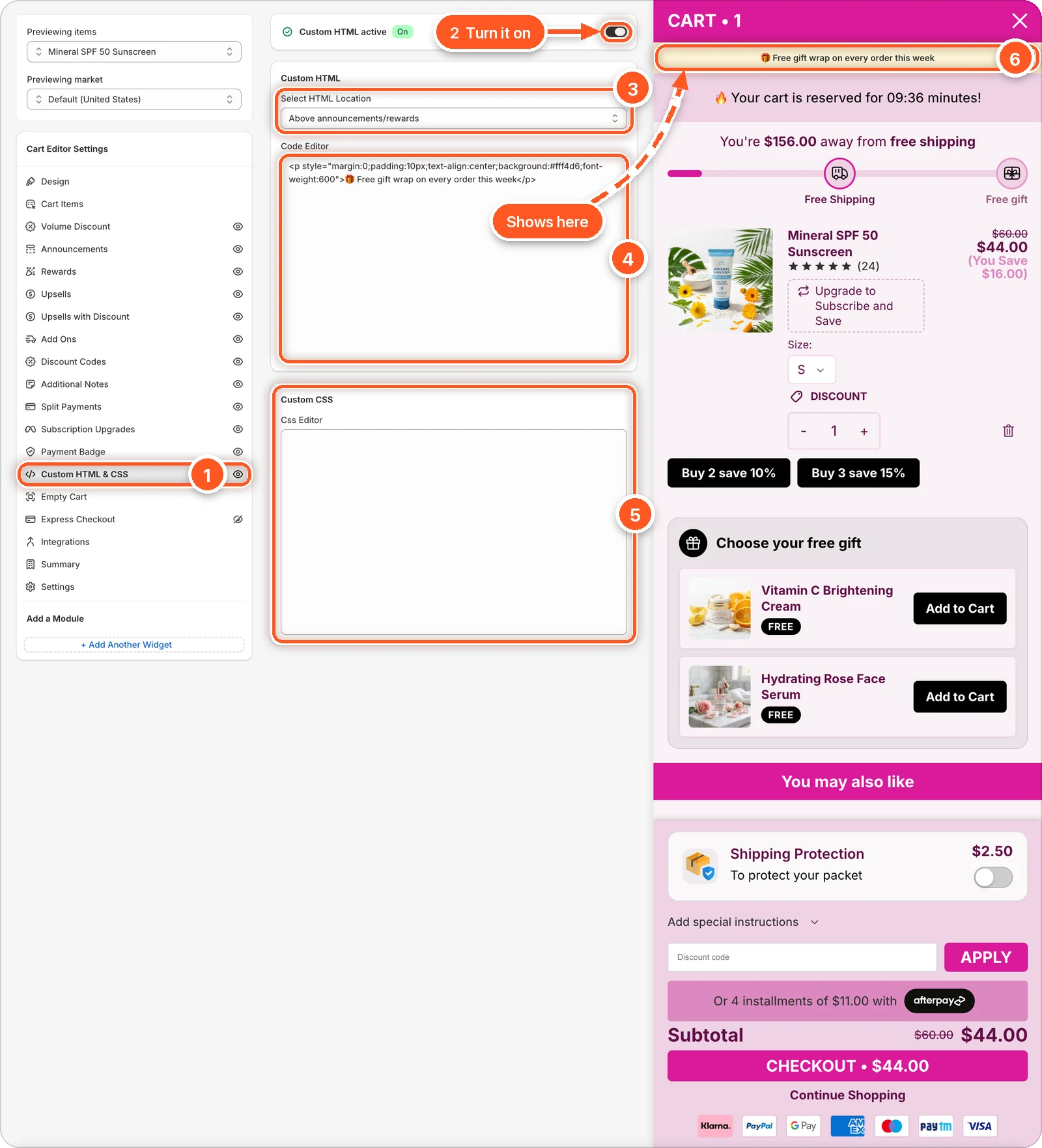
In this screenshot Custom HTML is switched on, the location is Above announcements/rewards, and the Code Editor holds a short sample banner. The preview shows it as a yellow "Free gift wrap on every order this week" bar just under the cart header, above the announcement bar (6).
| # | Section | What it's for |
|---|---|---|
| 1 | Custom HTML & CSS tab | Open this tab. The eye icon shows it's on. A crossed-out eye means it's off. |
| 2 | Custom HTML switch | Turns on both your HTML and your CSS. When it's on, the card reads Custom HTML active with a green On badge. |
| 3 | Select HTML Location | Where in the drawer this HTML goes. |
| 4 | Code Editor | Your HTML for the selected location. |
| 5 | Custom CSS | CSS for the whole drawer, typed in the Css Editor. |
| 6 | Your HTML in the preview | Here, the sample banner just under the cart header. |
The banner is just an example to show where HTML appears. This is the code from the screenshot, if you'd like to start from it:
Change the text and colours to suit your store, or replace it with your own HTML.
Add HTML
Switch on Custom HTML at the top.
Choose a spot in Select HTML Location.
Type or paste your HTML in the Code Editor.
To add HTML at another spot, choose that location and type its HTML. Each location keeps its own code.
Click Save.
Locations
| Location | Where it shows |
|---|---|
| Above announcements/rewards | Under the cart header, above the announcement bar and rewards. |
| Below header/announcements/rewards | Just under them. |
| Between each line item | Under every product in the cart. |
| Above footer/add-ons | At the top of the footer. |
| Above checkout button | Right above the checkout button. |
| Below checkout button | Right under it. |
| Bottom of cart | At the very bottom. |
| On empty cart screen | Only when the cart is empty. |
When you come back to the tab, it shows the first location. Your code for the other locations is still there; pick a location to see it.
Live values you can use
These placeholders in your HTML are replaced with live values:
| Placeholder | Becomes |
|---|---|
{{cart_total}} | The cart total, formatted, like $57.05. |
{{cart_total_amount}} | The cart total as a plain number. |
{{savings}} | The total saving. Empty when there's none. |
{{order_discount_savings}} | Savings from order discounts. |
{{original_price}} | The total before discounts. |
{{cart_item_count}} | The number of items. |
{{discount_codes}} | The applied codes, separated by commas. |
For example: <p>You're saving {{savings}} today!</p>
Add CSS
Type CSS in Css Editor. It applies to the whole drawer, including the rewards bar and the empty cart. Use your browser's inspector on your store to find the class names to target.
Good to know
- The one switch controls both. Turning Custom HTML off also turns off your CSS.
- Scripts run.
scripttags in your HTML run on your store, and may run more than once as the cart updates. Write them so running twice does no harm. - Product forms in your HTML still add to the drawer's cart.