
Upsells
Recommend products in the cart with AI, Shopify's complementary products, or your own rules.
Where to find it: in the cart editor, click Upsells in the Cart Editor Settings list.
Upsells show products that go well with what's in the cart, under a title like "You may also like". Shoppers add them with one tap. Upsells here are at full price. To offer a lower price, use Upsells with Discount.
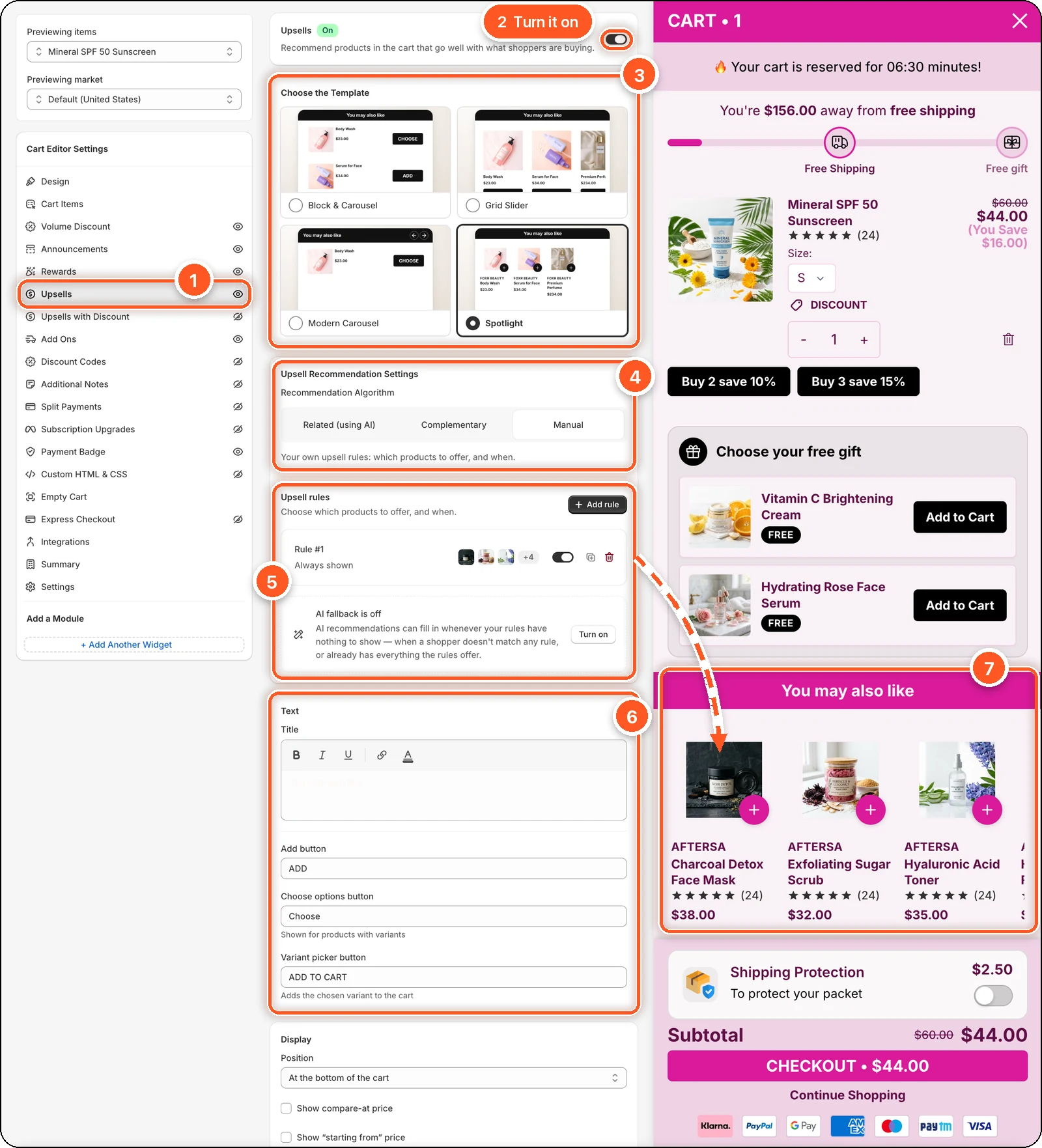
In this screenshot upsells are switched on with the Spotlight template and Manual recommendations. Rule #1 is Always shown, so its products fill the You may also like section in the cart preview (7). The dashed arrow links the rule to the products it shows.
| # | Section | What it's for |
|---|---|---|
| 1 | Upsells tab | Open this tab. The eye icon shows upsells are on. A crossed-out eye means they're off. |
| 2 | Upsells switch | Turns upsells on or off. |
| 3 | Choose the Template | Four layouts for the upsell section. Spotlight is picked here. |
| 4 | Recommendation Algorithm | How products are chosen. Manual is picked here. |
| 5 | Upsell rules | Your own rules (with Manual), and the AI fallback card under them. |
| 6 | Text | The title and button labels. |
| 7 | Upsells in the preview | The You may also like section shoppers see. |
Below these are the Display, Design, and Custom template cards.
Turn on upsells
Click Upsells in the sidebar and switch on Upsells at the top.
Pick a template.
Under Recommendation Algorithm, choose how products are picked (see below).
Click Save.
Choose the template
| Template | Looks like |
|---|---|
| Block & Carousel | One offer at a time with arrows, or a stacked list. |
| Grid Slider | Cards in a sliding row with a "Save" ribbon. The default for new carts. |
| Modern Carousel | A clean, modern carousel. |
| Spotlight | Brand-forward cards with a quick-add button. |
How products are chosen
| Recommendation Algorithm | How it works |
|---|---|
| Related (using AI) | Products related to what's in the cart. Nothing to set up. |
| Complementary | The products you've paired with each product in Shopify's Search & Discovery app. Set them up there first, or nothing shows. |
| Manual | Your own rules: which products to offer, and when. |
Products already in the cart are never offered.
Manual: create upsell rules
Choose Manual, then click Add rule.
Give the rule a Rule name. Only you see it.
Under Display conditions, click Add condition to choose when the rule applies. With no conditions, the rule is Always shown.
Under Upsell products, click Select products and pick up to 25 products. Drag them to set their order.
Click Save rule.
Conditions you can use
| Condition | Example |
|---|---|
| Cart value | is greater than $50 |
| Product in cart | is any of: Running Shoes |
| Collection in cart | is any of: Summer |
| Variant in cart | is any of: Size L |
| Customer tag | VIP |
| Customer | is: Logged in, has past orders |
| Market | is any of: Canada |
Click Or to add another condition to the same group (any one must match), or And to add a new group (every group must match).
Manage your rules
- Rules are checked from top to bottom. Drag a rule by its handle to change the order.
- Use a rule's switch to turn it off without deleting it.
- Duplicate makes a copy; Delete removes it straight away.
- A Needs attention badge means something is missing, such as products.
AI fallback
When a shopper doesn't match any rule, or already has everything your rules offer, the upsell section would be empty. Click Turn on in the AI fallback is off card to let AI fill the gap. Then choose Related or Complementary recommendations.
Text
| Setting | What it's for | Default |
|---|---|---|
| Title | The heading over the upsells. | You may also like |
| Add button | The button on products with one variant. | ADD |
| Choose options button | The button on products with variants. | Choose |
| Variant picker button | The button after picking a variant. It adds that variant to the cart. | ADD TO CART |
| Savings text | (Grid Slider only) The ribbon on each card, like "Save $10.00". {{amount}} is the saving. | Save {{amount}} |
| Savings text position | (Grid Slider only) Top of card or Next to price. | Top of card |
In the screenshot the Title field looks empty. Its text is very light, so it's hard to see on the white field. It shows clearly on the pink title bar in the preview.
Display
| Setting | What it does |
|---|---|
| Position | Above cart items, Below cart items, or At the bottom of the cart (default). |
| Layout | (Block & Carousel) Carousel shows one offer at a time; Stacked lists them all. |
| Show compare-at price | Show the original price crossed out. |
| Show "starting from" price | For products with variants, show the cheapest price, like "From $19.00". |
| Show in a side panel | (Grid Slider, desktop only) open recommendations in a panel next to the cart. |
| Hide reward products | Don't offer products that are given away as rewards. |
| Limit the number of offers | Show at most this many products: up to 10 with AI or Complementary, up to 20 with Manual. |
Design
Open each part to change it: Title bar, Background & cards, Image, Brand name (Spotlight), Product title, Price, Savings badge, and Button. The parts you see depend on the template.
Good to know
- Upsells only show when the cart has items and there's at least one product to recommend.
- If you choose Complementary and see nothing, set up complementary products in Shopify's Search & Discovery app.