
Empty Cart
Choose what shoppers see when their cart is empty, add a button back to your store, and show products to add.
Where to find it: in the cart editor, click Empty Cart in the Cart Editor Settings list.
When you open this tab, the preview switches to an empty cart automatically, even if you're previewing a product. Switch to another tab and the preview shows your items again.
An empty cart is a chance to keep shoppers browsing. This tab sets the message, an optional button, and a shelf of recommended products. The empty state always shows when the cart has no items, so there's no on/off switch.
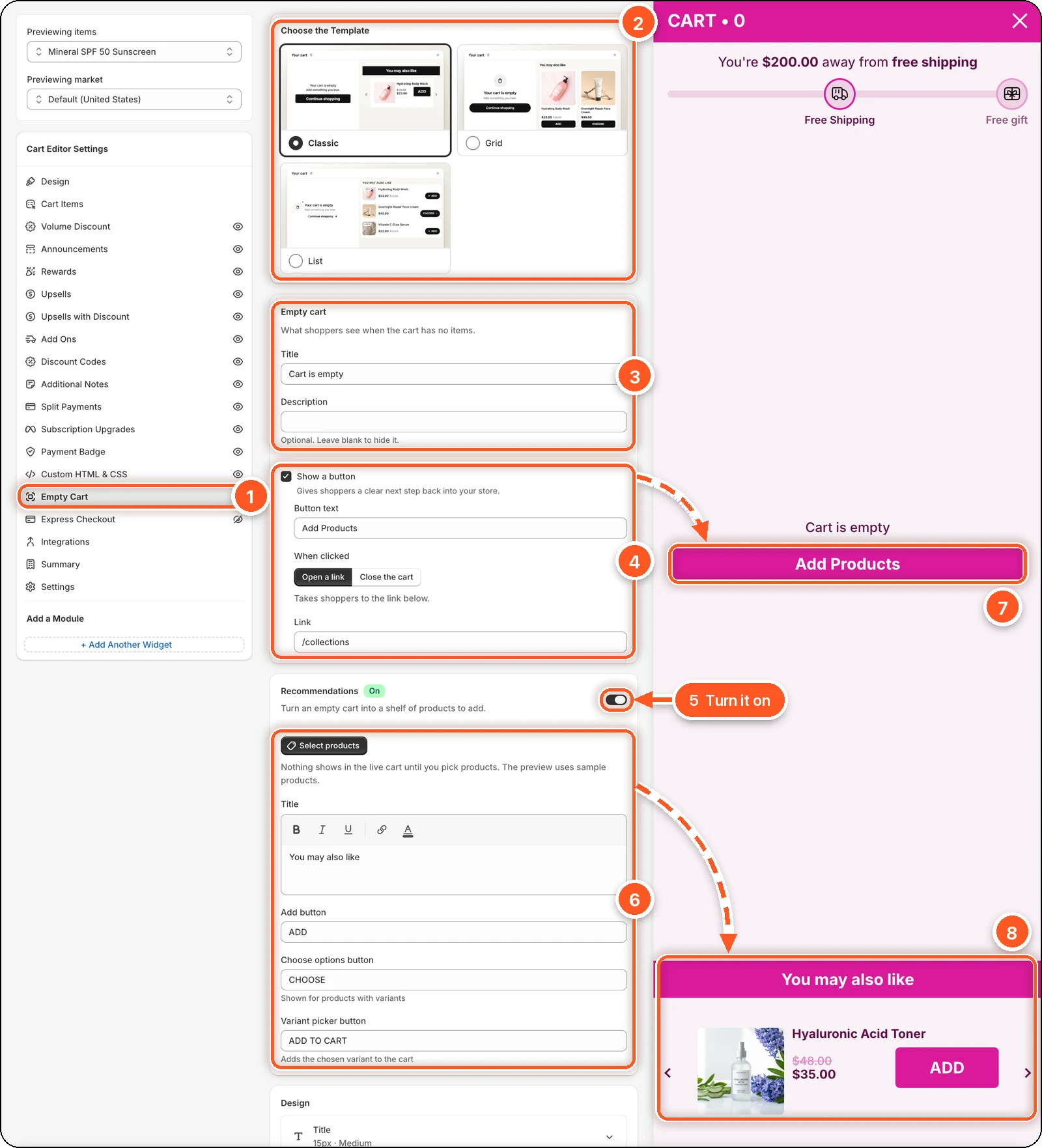
In this screenshot Show a button is ticked and Recommendations is switched on. In the preview you can see the Add Products button (7) under "Cart is empty", and the You may also like shelf (8) at the bottom. No products are picked yet, so the shelf shows sample products.
| # | Section | What it's for |
|---|---|---|
| 1 | Empty Cart tab | Open this tab in the sidebar. The preview switches to an empty cart. |
| 2 | Choose the Template | Three layouts for the empty state. Classic is picked here. |
| 3 | Empty cart | The Title and Description shoppers see. |
| 4 | Show a button | Adds a button back into your store, with its text, what it does, and its link. |
| 5 | Recommendations switch | Turns the product shelf on or off. |
| 6 | Recommendation settings | Pick the products and change the shelf's texts. |
| 7 | The Add Products button in the preview | Shows up when Show a button is ticked. |
| 8 | You may also like in the preview | The product shelf. Shows up when Recommendations is on. |
Below these, the Design card sets fonts and colours. See Design.
Choose a template
| Template | Looks like |
|---|---|
| Classic (default) | A centred message with a product carousel. |
| Grid | An icon above the message, with a two-column product grid. |
| List | A slim header and quick-add product rows that fit above the fold. |
Templates reset the empty cart's styling
Choosing a template replaces the colours, sizes, and rounding of the empty cart and its recommendations. Your texts, button settings, and products are kept.
Message and button
| Setting | What it does | Default |
|---|---|---|
| Title | The main message. | Cart is empty |
| Description | A second line under the title. Leave blank to hide it. | (blank) |
| Show a button | Adds a button that sends shoppers back into your store. | Off |
When Show a button is ticked:
- Button text — default "Add Products".
- When clicked — Open a link takes shoppers to the link you enter; Close the cart closes the drawer so they keep browsing.
- Link — the default is
/collections. You can use any page, for example/collections/allor/collections/sale.
Recommendations
Turn an empty cart into a shelf of products to add.
Switch on Recommendations. It's off by default.
Click Select products and pick products in Shopify's product picker.
Change the texts if you like: Title ("You may also like"), Add button ("ADD"), Choose options button ("CHOOSE", shown for products with variants), and Variant picker button ("ADD TO CART").
Pick products, or nothing shows
Until you pick products, the preview uses sample products but your store shows nothing. Click Edit products any time to change the list.
Design
Click a part to open it. The parts depend on the template and on which options are on:
- Title and Description — colour, font size, font weight.
- Icon (Grid and List) — icon and background colour.
- Button — text and background colour, font size, border, and corner radius.
- Title bar, Background & cards, Product image, Product title, Price, Sale badge (List), and Add button — for the recommendations.