
Open the cart editor
Find your carts, open one in the editor, and create, rename, duplicate, export, or delete carts.
Every cart design lives on the Carts page. You open the editor from there.
Open the editor
In the app menu, click Carts. You can also click Manage carts on the app's Home page.
Find the cart you want to change. Your Live cart is in the top table, and your drafts are in the Drafts table below it.
Click the pencil (Edit) in its Actions column. The editor opens full screen.
The Carts page
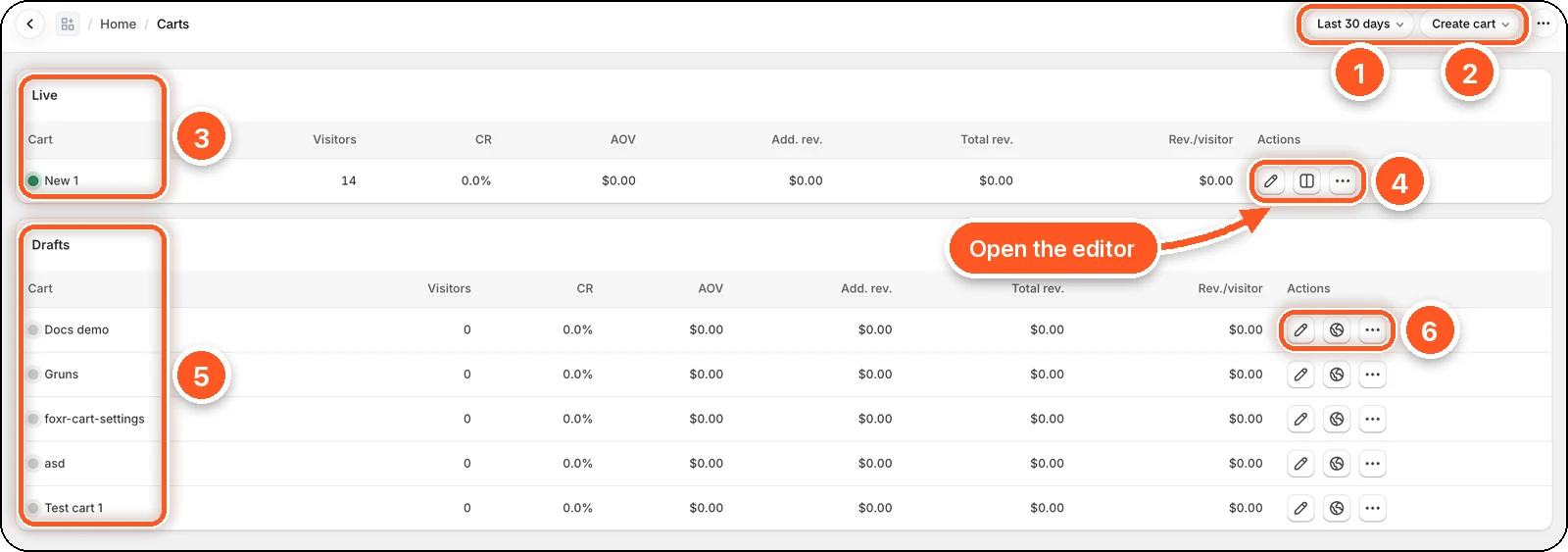
In this screenshot New 1 is the live cart, and there are five drafts below it.
| # | Part | What it's for |
|---|---|---|
| 1 | Date range | Choose Last 7 days, Last 30 days, or Last 365 days for the numbers in the tables. |
| 2 | Create cart | Start a new draft from scratch or with AI. See Create a cart. |
| 3 | Live | The cart your shoppers see right now. There's always exactly one, marked with a green dot. |
| 4 | Live cart actions | Pencil = Edit (opens the editor), two columns = A/B test, ⋯ = more actions. |
| 5 | Drafts | Saved carts that shoppers don't see until you publish them, marked with a grey dot. |
| 6 | Draft actions | Pencil = Edit, globe = Publish, ⋯ = more actions. |
What the numbers mean
| Column | Meaning |
|---|---|
| Visitors | Store visits while this cart was live, counted once per visit per day. |
| CR | Conversion rate: orders per visitor. |
| AOV | Average order value. |
| Add. rev. | Additional revenue: what shoppers paid for products they added from the cart, like upsells and add-ons. |
| Total rev. | Revenue from all orders placed while this cart was live. |
| Rev./visitor | Total revenue divided by visitors. |
Drafts show zeros until they've been live.
Create a cart
Click Create cart at the top of the page.
- Start from scratch makes a draft with the default design. Give it a name, such as "Holiday cart", and click Create cart.
- Create with AI builds a draft from a screenshot of a cart you like:
- Click Download AI guide and give the file to Claude or ChatGPT together with your screenshot.
- Upload the
.jsonfile the AI gives you, and give the cart a name. - Click Create cart. The new draft opens in the editor so you can review it.
New carts are always drafts. Nothing changes for shoppers until you publish one. You can keep up to 25 carts in total. At the limit, delete a draft to make room.
The ⋯ menu
| Action | What it does |
|---|---|
| Rename | Change the cart's name. Shoppers never see it. |
| Duplicate | Make a draft copy named "Copy of" plus the cart's name. Handy for trying ideas without touching the live cart. |
| Export .json | Download the cart's settings as a file. Import it into another cart with the Import button in the editor. |
| A/B test against live cart | Drafts only. Test this draft against your live cart. |
| Traffic split | During an A/B test. Choose what percentage of shoppers see the B variant. |
| Delete | Drafts only. Deletes the draft for good. The live cart can't be deleted. Publish another cart first. |
Publish a draft
Click the globe next to a draft, or open it and click Publish in the editor header. Confirm in Publish this cart?
The draft replaces your live cart on the store, and checkout discounts switch to its rewards, volume, and upsell settings. Your old live cart is kept as a draft, so you can switch back any time.
During an A/B test
You can't publish a draft while an A/B test exists, even if it's paused or hasn't started. End the test first: the test compares the live cart with the B variant.