
Summary
Set up the bottom of the drawer — the subtotal, the checkout button, continue shopping, and terms and conditions.
Where to find it: in the cart editor, click Summary in the Cart Editor Settings list.
The summary is the footer at the bottom of the drawer: the subtotal, the checkout button, and the Continue Shopping link. By default it sticks to the bottom of the drawer, so the checkout button is always in reach. It's always on.
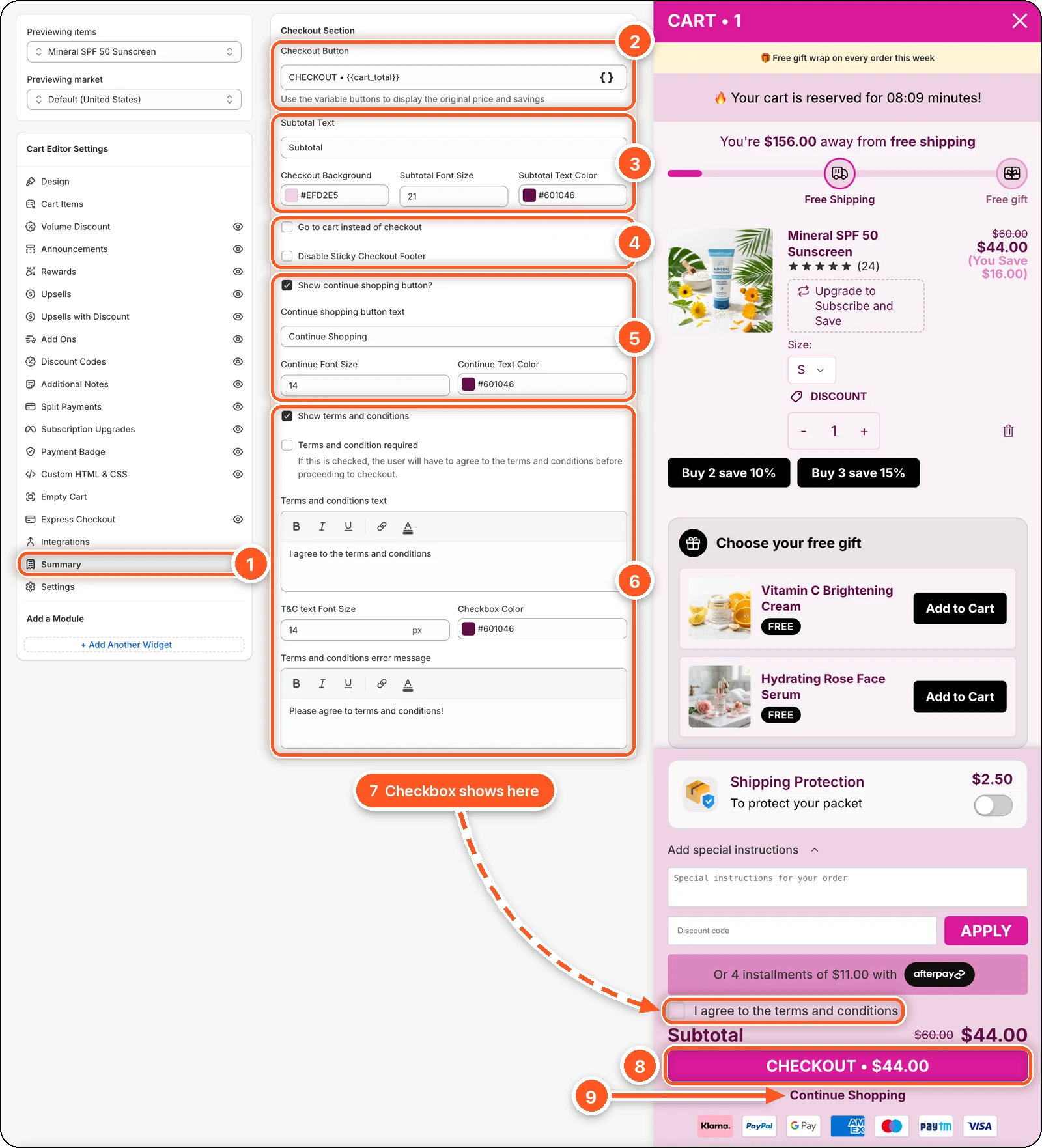
In this screenshot Show terms and conditions is ticked, so the preview shows an "I agree to the terms and conditions" checkbox (7) just above the subtotal. Below it you can see the checkout button (8) and the Continue Shopping link (9).
| # | Setting | What it changes |
|---|---|---|
| 1 | Summary tab | Open this tab in the sidebar. |
| 2 | Checkout Button | The words on the checkout button. |
| 3 | Subtotal Text, colours, and size | The subtotal label, the footer background (Checkout Background), and the subtotal's size and colour. |
| 4 | Go to cart instead of checkout and Disable Sticky Checkout Footer | Where the button takes shoppers, and whether the footer stays pinned to the bottom. |
| 5 | Show continue shopping button? | The link under the checkout button, with its text, size, and colour. |
| 6 | Show terms and conditions | A checkbox shoppers tick before checkout, with its text, size, colour, and error message. |
| 7 | The terms checkbox in the preview | Shows up when Show terms and conditions is ticked. |
| 8 | The checkout button in the preview | Your Checkout Button text, with the cart total filled in. |
| 9 | Continue Shopping in the preview | Closes the drawer so shoppers keep browsing. |
Checkout button text
The default is CHECKOUT • {{cart_total}}, which shows as "CHECKOUT • $44.00" in the screenshot above. Click { } to insert a variable:
| Variable | Shows |
|---|---|
{{cart_total}} | The final cart total. |
{{original_price}} | The total before discounts, crossed out. Only shows when there's a saving. |
{{savings}} | How much the shopper saves. |
For example, CHECKOUT • {{original_price}} {{cart_total}} shows the old total crossed out next to the new one.
The button's colours, size, and rounding come from Button Text Size, Button Text Color, Button Radius, and Button Background Color in the Cart Global Design card on the Design tab.
Subtotal
| Setting | Default |
|---|---|
| Subtotal Text | Subtotal |
| Checkout Background (the footer's background) | Light grey |
| Subtotal Font Size | 21 |
| Subtotal Text Color | Near black |
The store in the screenshot uses its own colours: Checkout Background #EFD2E5 and Subtotal Text Color #601046.
Checkout behaviour
- Go to cart instead of checkout. The button opens your
/cartpage instead of going straight to checkout. Use it if shoppers need to do something on the cart page first. - Disable Sticky Checkout Footer. The footer scrolls with the rest of the drawer instead of staying pinned to the bottom.
Continue shopping
Show continue shopping button? is ticked by default. It adds a Continue Shopping link under the checkout button that closes the drawer. Change its wording in Continue shopping button text, and its look with Continue Font Size (14) and Continue Text Color.
Terms and conditions
Tick Show terms and conditions. A checkbox appears in the footer, just above the subtotal.
Write the text in Terms and conditions text. Use the link button in the editor to link to your policy page.
To make it required, tick Terms and condition required. Shoppers then can't check out until they tick the box.
Write the message they see if they forget, in Terms and conditions error message. The default is "Please agree to terms and conditions!".
You can also set the text size (T&C text Font Size, 14 by default) and the Checkbox Color.
What else is in the footer
From top to bottom, the footer shows: add-ons, order notes, the discount code field, split payment messages, terms, the subtotal, the checkout button, express checkout buttons, continue shopping, and payment badges. Each has its own tab.