
Split Payments
Show buy now, pay later messages like "Or 4 installments of $12.50 with Klarna" in the cart.
Where to find it: in the cart editor, click Split Payments in the Cart Editor Settings list.
Split payments show shoppers they can pay over time, for example "Or 4 installments of $11.00 with afterpay". The amount is worked out from the cart total. The message sits in the cart footer, under the discount code box and above the subtotal.
It's a message, not a payment method
The banner only displays information. Shoppers still choose Klarna, Afterpay, or another provider at checkout, so you need that provider set up as a payment method in Shopify.
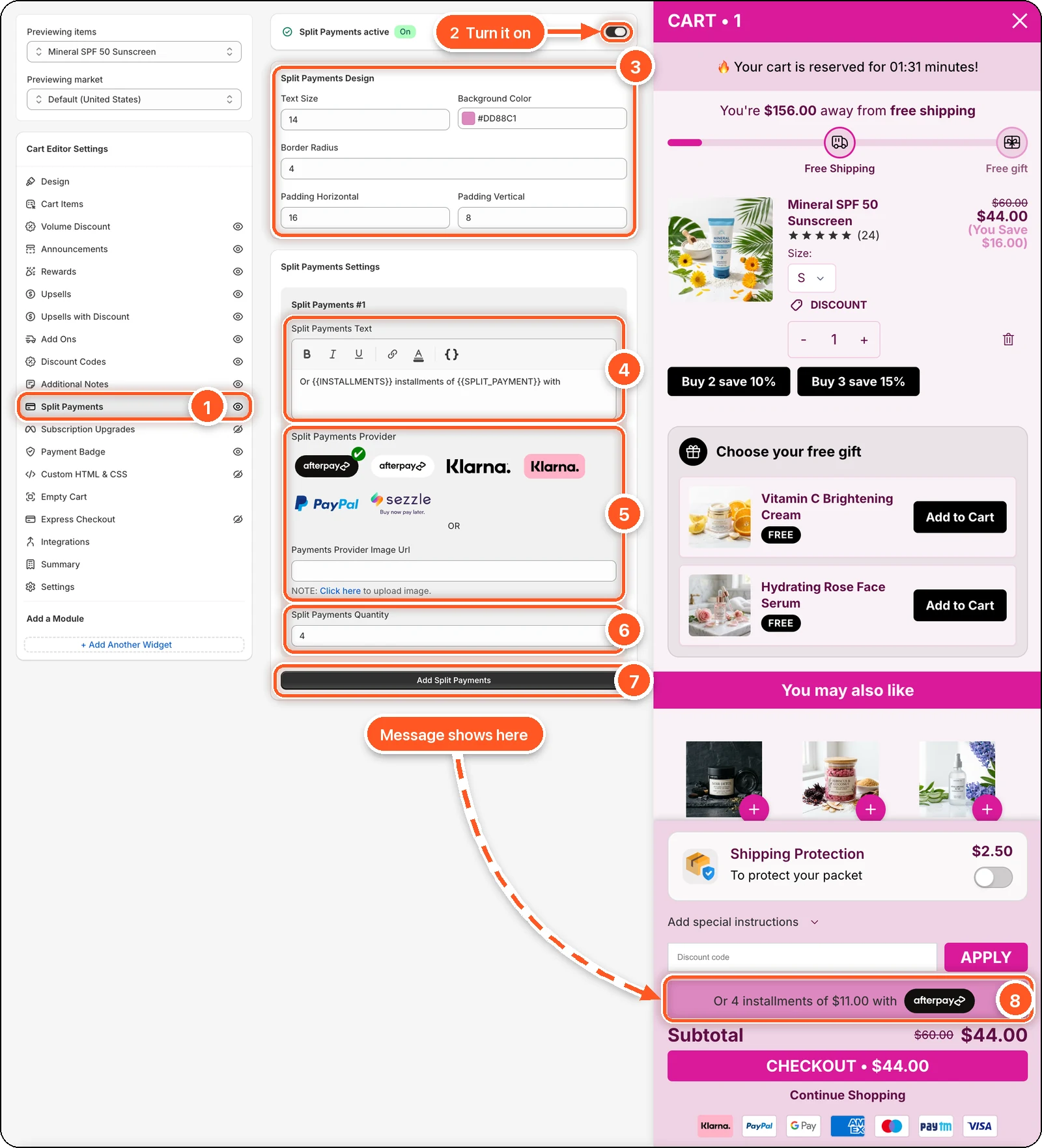
In this screenshot Split Payments is switched on with the black Afterpay logo and a quantity of 4. The cart total is $44.00, so the preview shows "Or 4 installments of $11.00 with afterpay" (8), just above the subtotal.
| # | Setting | What it's for |
|---|---|---|
| 1 | Split Payments tab | Open this tab. The eye icon shows the module is on. A crossed-out eye means it's off. |
| 2 | Split Payments switch | Turns the message on or off. When it's on, the card reads Split Payments active with a green On badge. |
| 3 | Split Payments Design | Text size, background colour, rounding, and padding of the message box. |
| 4 | Split Payments Text | The message. {{INSTALLMENTS}} and {{SPLIT_PAYMENT}} are filled in for you. |
| 5 | Split Payments Provider | The logo at the end of the message. Or paste your own logo link in Payments Provider Image Url. |
| 6 | Split Payments Quantity | How many installments. The cart total is divided by this number. |
| 7 | Add Split Payments | Add another provider's message. |
| 8 | Message in the cart | What shoppers see, above the subtotal. |
Set it up
Switch on Split Payments at the top.
Check the Split Payments Text. The default is Or {{INSTALLMENTS}} installments of {{SPLIT_PAYMENT}} with. Click { } to insert Installments (the number) or Installment amount (the cart total divided by that number).
Click your provider's logo: Afterpay (black or white), Klarna (black or pink), PayPal, or Sezzle. A green tick marks the one in use.
Set Split Payments Quantity to your provider's number of installments, such as 4.
Click Save.
A provider that isn't listed
Upload the provider's logo to Content → Files in Shopify (the Click here link takes you there), copy its URL, and paste it into Payments Provider Image Url. This replaces the selected logo.
More than one provider
Click Add Split Payments to add another message, for example one for Klarna and one for PayPal. Each has its own text, logo, and quantity.
Design
| Setting | Default |
|---|---|
| Text Size | 14 |
| Background Color | Green |
| Border Radius | 4 |
| Padding Horizontal / Padding Vertical | 16 / 8 |
The screenshot uses a pink Background Color (#DD88C1) to match the cart. Text colour is set in the text editor's toolbar.
Good to know
- Keep Split Payments Quantity at 1 or more. If it's 0 or empty, the amount shows up broken.
- The eye icon in the sidebar only shows whether the module is on. Use the switch inside the tab to turn it on or off.