
Subscription Upgrades
Let shoppers switch a one-time item to a subscription right in the cart.
Where to find it: in the cart editor, click Subscription Upgrades in the Cart Editor Settings list.
If your products have subscription plans, this adds an Upgrade to button on those items in the cart. One tap switches the item to a subscription. After that, shoppers can change plans or go back to a one-time purchase.
You need a subscription app
The button only shows on products with subscription plans (selling plans), which come from a subscription app such as Shopify Subscriptions. Products without plans don't get a button.
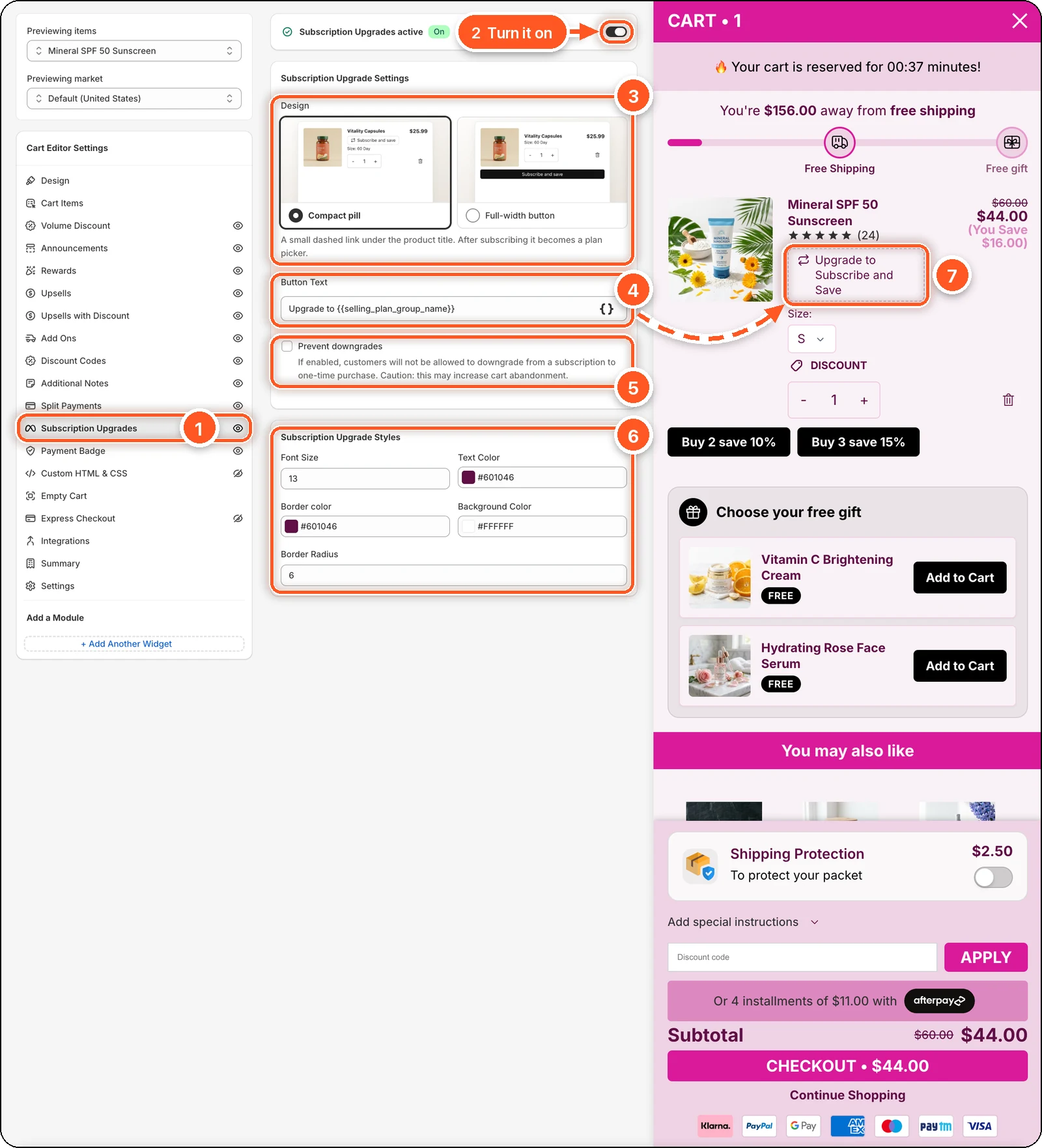
In this screenshot Subscription Upgrades is switched on with the Compact pill design. Look under the product title in the cart preview: the dashed Upgrade to Subscribe and Save link (7) is the upgrade button.
| # | Setting | What it's for |
|---|---|---|
| 1 | Subscription Upgrades tab | Open this tab. The eye icon shows the feature is on. A crossed-out eye means it's off. |
| 2 | Subscription Upgrades switch | Turns the upgrade button on or off. When it's on, the card reads Subscription Upgrades active with an On badge. |
| 3 | Design | Compact pill or Full-width button. |
| 4 | Button Text | The words on the button. The plan name fills in for {{selling_plan_group_name}}. |
| 5 | Prevent downgrades | Stop shoppers switching back to one-time. |
| 6 | Subscription Upgrade Styles | Font size, colours, and corner rounding for the design you picked. |
| 7 | Upgrade button in the preview | What shoppers see on the cart item. |
Turn it on
Switch on Subscription Upgrades at the top.
Choose a Design:
- Compact pill — a small dashed link under the product title. After subscribing it becomes a plan picker.
- Full-width button — a solid button under the item. After subscribing it becomes a plan dropdown.
Check the Button Text. The default Upgrade to {{selling_plan_group_name}} uses your plan's name, for example "Upgrade to Subscribe and Save".
Click Save.
Prevent downgrades
Tick Prevent downgrades to stop shoppers switching a subscribed item back to a one-time purchase. Use it with care: shoppers who can't undo a choice may leave instead.
Styles
| Design | Settings |
|---|---|
| Compact pill | Font Size (13), Text Color, Border color, Background Color, Border Radius (6). |
| Full-width button | Button Font Size (14), Button Text Color, Border Radius (5), Background Color. |
Good to know
- The upgrade picks the first plan of the first plan group. Shoppers can choose other plans after upgrading.
- The preview shows the button on every item with the sample name "Subscribe and Save", whether or not the product has plans. Check the real result on your store.
- Free gifts never get the button.