
Tour the cart editor
What every part of the cart editor screen does, from the header buttons to the live preview.
The cart editor is where you design the cart drawer. It has three columns: the tabs on the left, the settings for the selected tab in the middle, and a live preview of the drawer on the right.
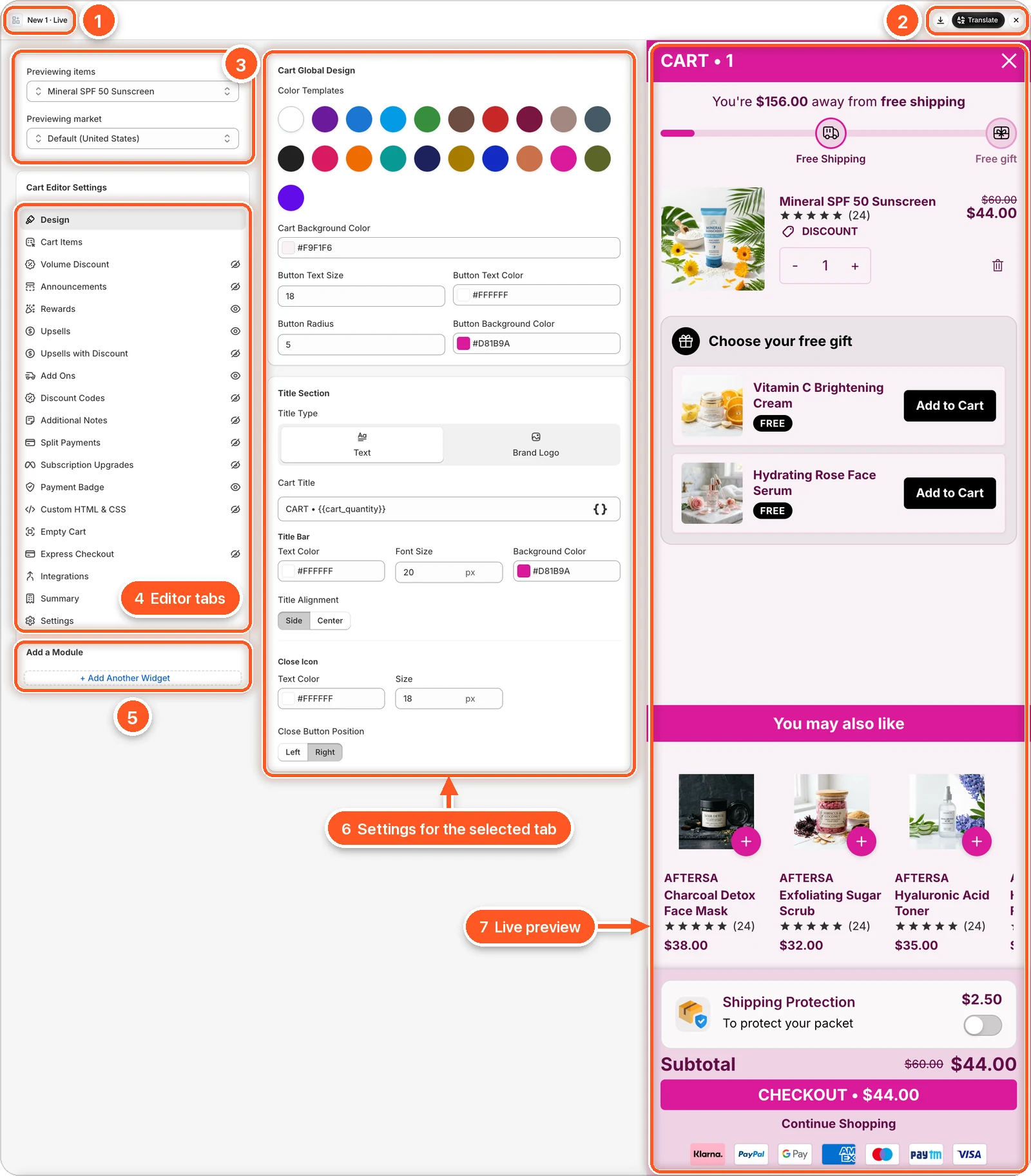
In this screenshot the Design tab is open, and Rewards, Upsells, Add Ons and Payment Badge are switched on. You can see them in the preview (7): the free shipping progress bar, Choose your free gift, You may also like, Shipping Protection, and the payment icons at the bottom.
| # | Area | What it does |
|---|---|---|
| 1 | Cart name & status | The name of the cart you're editing, and whether it's Live or a Draft. |
| 2 | Import · Translate · Close | Import a settings file, Translate the cart's text, and close the editor. |
| 3 | Preview controls | Choose which products and which market the preview shows. They only change the preview. |
| 4 | Editor tabs | One tab per part of the drawer. Click a tab to see its settings. |
| 5 | Add a module | Add extra widgets, such as a guarantee strip, a promo banner, or a delivery estimate. |
| 6 | Settings for the selected tab | Everything you can change for the tab you picked. Here, the Design tab. |
| 7 | Live preview | Your drawer with your unsaved changes. It updates as you type. |
The editor always opens on Design
Every time you open a cart, the editor starts on the Design tab. Click any other tab in the list to switch.
The header
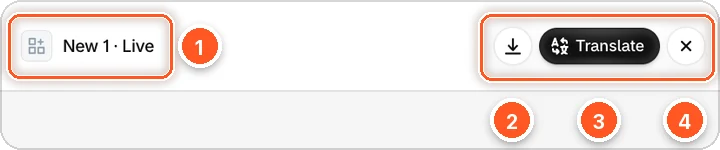
| # | Button | What it does |
|---|---|---|
| 1 | Cart name and status | Shows New 1 · Live for the live cart and Name · Draft for a draft. When you edit the B variant of an A/B test, it says Cart Editor — Cart B. |
| 2 | Import (the arrow icon) | Loads a .json settings file into the editor. The file's sections replace the matching parts of this cart. Nothing goes live until you click Save. See Import a settings file. |
| 3 | Translate | Opens Edit translations, where you translate the cart's texts into your store's other languages. Only modules that are switched on are listed, and you still need to click Save. See Translate the cart. |
| 4 | Close (×) | Closes the editor and takes you back to Carts. |
On a draft, the header also has a Publish button. On the live cart, Translate is the main button instead.
The left column
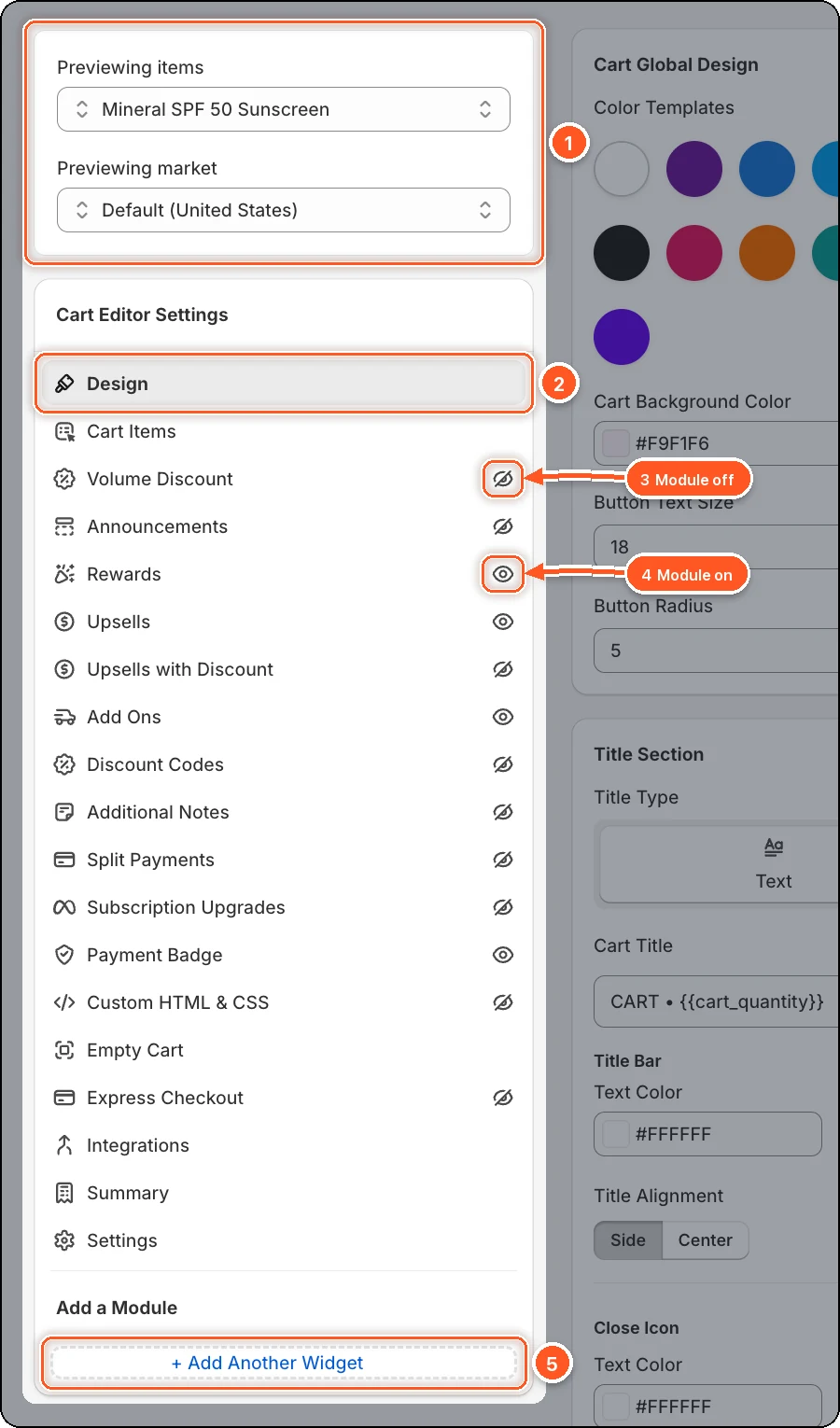
| # | Part | What it means |
|---|---|---|
| 1 | Previewing items and Previewing market | These decide what the preview shows. See Preview controls. |
| 2 | The selected tab | The tab you're editing is highlighted (here, Design). Its settings are in the middle column. |
| 3 | Crossed-out eye: the module is off | Shoppers don't see this part of the drawer. Here, Volume Discount is off. |
| 4 | Eye: the module is on | Shoppers see it. Here, Rewards is on. |
| 5 | + Add Another Widget | Adds a guarantee strip, promo banner, delivery estimate, or a second discounted upsell. See Add a module. |
The eye icon is a status light, not a switch
Clicking the eye doesn't turn anything on or off. It only tells you the module's state. To turn a module on or off, open its tab and use the switch at the top of the settings. See Turn features on and off.
Tabs without an eye have no on/off switch of their own: Design, Cart Items, Empty Cart, Integrations, Summary, and Settings.
All tabs at a glance
| Tab | What it controls |
|---|---|
| Design | Background, button style, and the header of the drawer. |
| Cart Items | How each product line looks: image, title, price, quantity. |
| Volume Discount | "Buy 2, save 10%" offers under qualifying items. |
| Announcements | A message bar, with an optional countdown timer. |
| Rewards | A progress bar toward free shipping, a discount, or a free gift. |
| Upsells | Product recommendations at full price. |
| Upsells with Discount | Product offers at a discounted price. |
| Add Ons | One-tap extras: shipping protection, gift wrap, warranties. |
| Discount Codes | A field where shoppers enter a discount code. |
| Additional Notes | An order note box. |
| Split Payments | "Or 4 installments of $11.00 with Afterpay" messages. |
| Subscription Upgrades | A button that switches an item to a subscription. |
| Payment Badge | Payment method icons under the checkout button. |
| Custom HTML & CSS | Your own code at chosen spots in the drawer. |
| Empty Cart | What shoppers see when the cart is empty. |
| Express Checkout | Shop Pay, Apple Pay, and other express buttons. |
| Integrations | Klaviyo, review apps, and checkout apps. |
| Summary | Subtotal, checkout button, continue shopping, and terms. |
| Settings | Width, slide direction, add-to-cart behaviour, and discount stacking. |
Preview controls
The two boxes at the top left only change what the preview shows. Shoppers never see them.
| Control | What it does |
|---|---|
| Previewing items | Click it to pick one or more products from your store. The preview cart fills with them, so you can see how your real products look. By default it uses your newest active product. |
| Previewing market | Shows the cart as a shopper in that market sees it: that market's reward tiers, free gifts, and delivery estimate rules. Prices are not converted in the preview. |
When you open the Empty Cart tab, the preview switches to an empty cart on its own.
The live preview
The right column is your drawer with every unsaved change. Use it to check your work before you save.
A few things only show on your real store, never in the preview:
- Express checkout buttons (Shop Pay, Apple Pay, and so on). See Express Checkout.
- Cart padding from the Settings tab.
- The countdown timer's end action, such as removing items from the cart.
Click the preview's own close (×) to fold it into a thin strip and give the settings more room. Click the arrow on the strip to bring it back.
Import a settings file
The Import icon in the header opens Import cart settings.
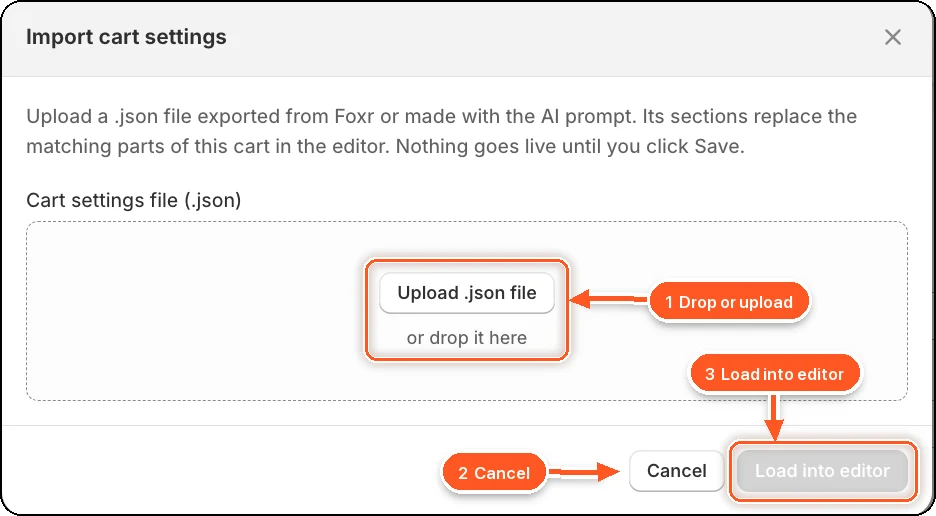
| # | Part | What it does |
|---|---|---|
| 1 | Upload .json file (or drop it here) | Pick the settings file. You can also drop it anywhere in the dashed box under Cart settings file (.json). |
| 2 | Cancel | Closes the window. Nothing changes. |
| 3 | Load into editor | Loads the file into the editor. It stays grey until you've picked a file. |
Click the Import icon (the arrow pointing down into a tray) in the editor header.
Drop a .json file on Cart settings file (.json), or click Upload .json file (1). Use a file you exported from the Carts page, or one made with the Create with AI guide. The limit is 512 KB.
Click Load into editor (3). The settings load as unsaved changes and a message says Imported. Review the cart, then click Save.
Check the preview, then click Save. To undo the import, click Discard instead.
Some things can't move between stores, so the import clears them and lists them in a banner: products picked for upsell rules, add-on products, coupon lists, empty cart products, volume discount products, uploaded payment badges, custom reward icons, and manual discount codes on reward tiers. Pick them again in this store.
Some tabs aren't imported
An import doesn't change Express Checkout, widgets added under Add a Module, or the second Upsells with Discount block. Set those up by hand after importing.