
Discount Codes
Let shoppers enter a discount code in the cart, or show a list of your coupons they can tap to apply.
Where to find it: in the cart editor, click Discount Codes in the Cart Editor Settings list.
Shoppers can apply a discount code without waiting for checkout. They see the discount in the cart straight away, which makes them more likely to finish the order.
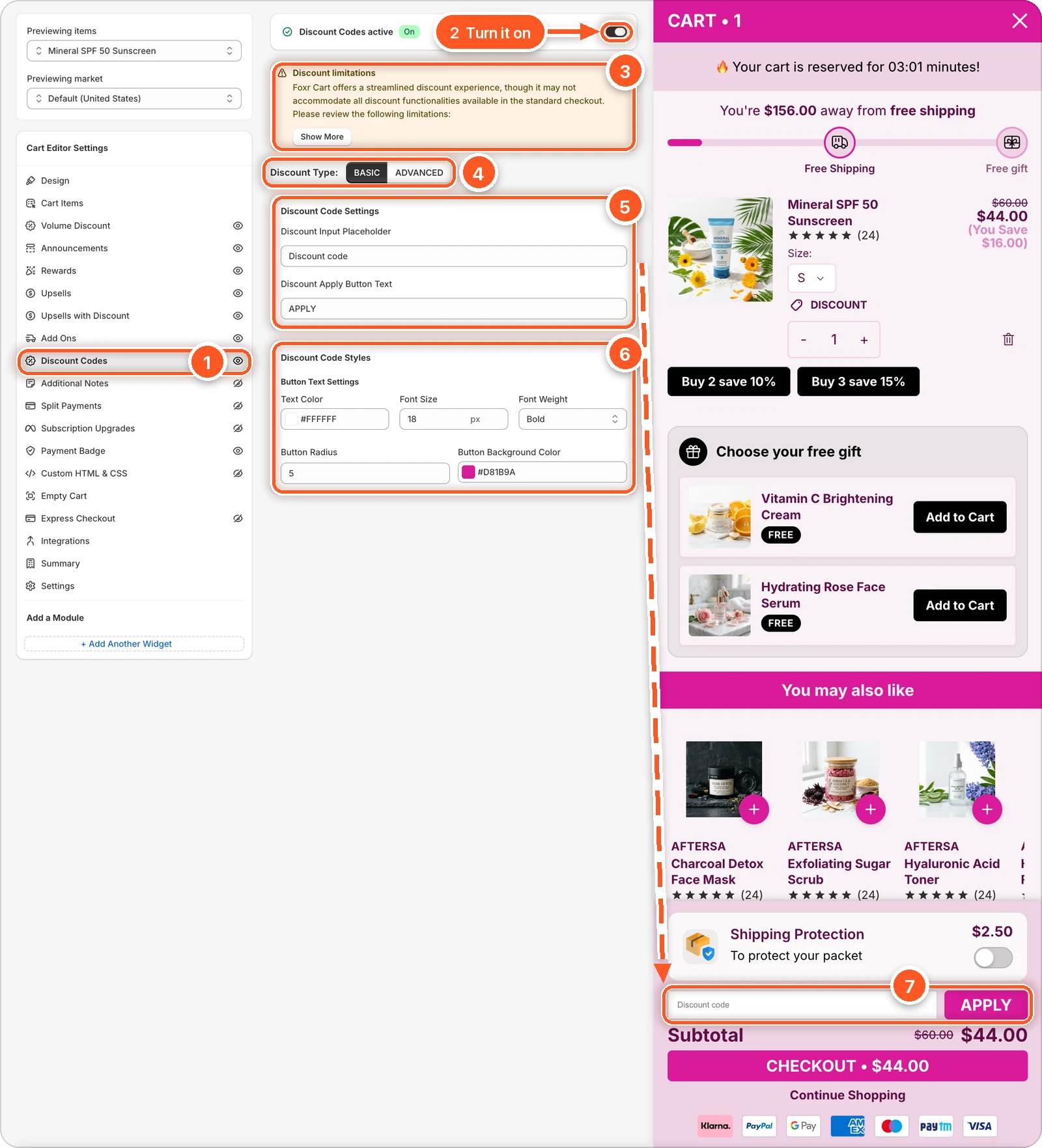
In this screenshot Discount Codes is switched on and set to BASIC. Look just above the subtotal in the cart preview (7): that's the Discount code field and the APPLY button. The button is pink because Button Background Color is set to #D81B9A here.
| # | Section | What it's for |
|---|---|---|
| 1 | Discount Codes tab | Open this tab. The eye icon shows discount codes are on. A crossed-out eye means they're off. |
| 2 | Discount Codes switch | Turns discount codes on or off in the cart. |
| 3 | Discount limitations | What the cart's code field can't do. Click Show More to read it all. |
| 4 | Discount Type | BASIC (a code field) or ADVANCED (a coupon list). |
| 5 | Discount Code Settings | The field's placeholder ("Discount code") and the button text ("APPLY"). |
| 6 | Discount Code Styles | The button's text colour, font size, and font weight, plus Button Radius and Button Background Color. |
| 7 | Code field in the cart preview | The field and its APPLY button, in the cart footer just above the subtotal. |
Basic: a code field
A code box and an APPLY button in the cart footer.
Switch on Discount Codes at the top.
Leave Discount Type on BASIC.
Change the Discount Input Placeholder ("Discount code") and the Discount Apply Button Text ("APPLY") if you like.
Style the button under Discount Code Styles: Text Color, Font Size, Font Weight, Button Radius, and Button Background Color.
Click Save.
Advanced: a list of coupons
A clickable Coupons and offers banner. Tapping it opens a sheet with a code field and the coupons you list, each with a short description. Shoppers tap a coupon to apply it.
Switch on Discount Codes and choose ADVANCED.
In List of Discount Codes Settings, click Add Discount Code.
Type the Coupon Code exactly as it is in Shopify. It's case sensitive.
Write a Reward Description that tells shoppers what the code gives, such as "10% off orders over $100".
Repeat for each coupon, then click Save.
Then style the banner in Coupons and Offers Settings: its title ("Coupons and offers"), subtitle, offer count ({{offers_count}} Offers), icon, and colours. The banner sits below the cart items. Tick Make Coupon and Offer Component Sticky to pin it just above the cart footer instead.
The banner only shows when the cart has products in it. A cart with nothing but add-ons doesn't show it.
Create the codes in Shopify first
The app doesn't check your coupon codes. If a code doesn't exist in Shopify → Discounts, or is spelled differently, shoppers see Coupon not applicable to items in cart when they tap it.
Discount limitations
The cart's code field is quicker than checkout, but it can't do everything checkout can:
- Free shipping codes can't be applied in the cart. Shoppers enter them at checkout.
- Shopify Plus stores still using
checkout.liquiddon't get the code field. Stores on checkout extensibility aren't affected.
Shoppers can always enter a code at checkout if the cart doesn't accept it.