
Upsells with Discount
Offer products at a lower price inside the cart, with rules for when each offer shows.
Where to find it: in the cart editor, click Upsells with Discount in the Cart Editor Settings list.
This works like Upsells, but every product is offered at a discount, such as "Special Offers Just For You!" with 10% off. Shoppers get the discount at checkout when they add the product from the offer.
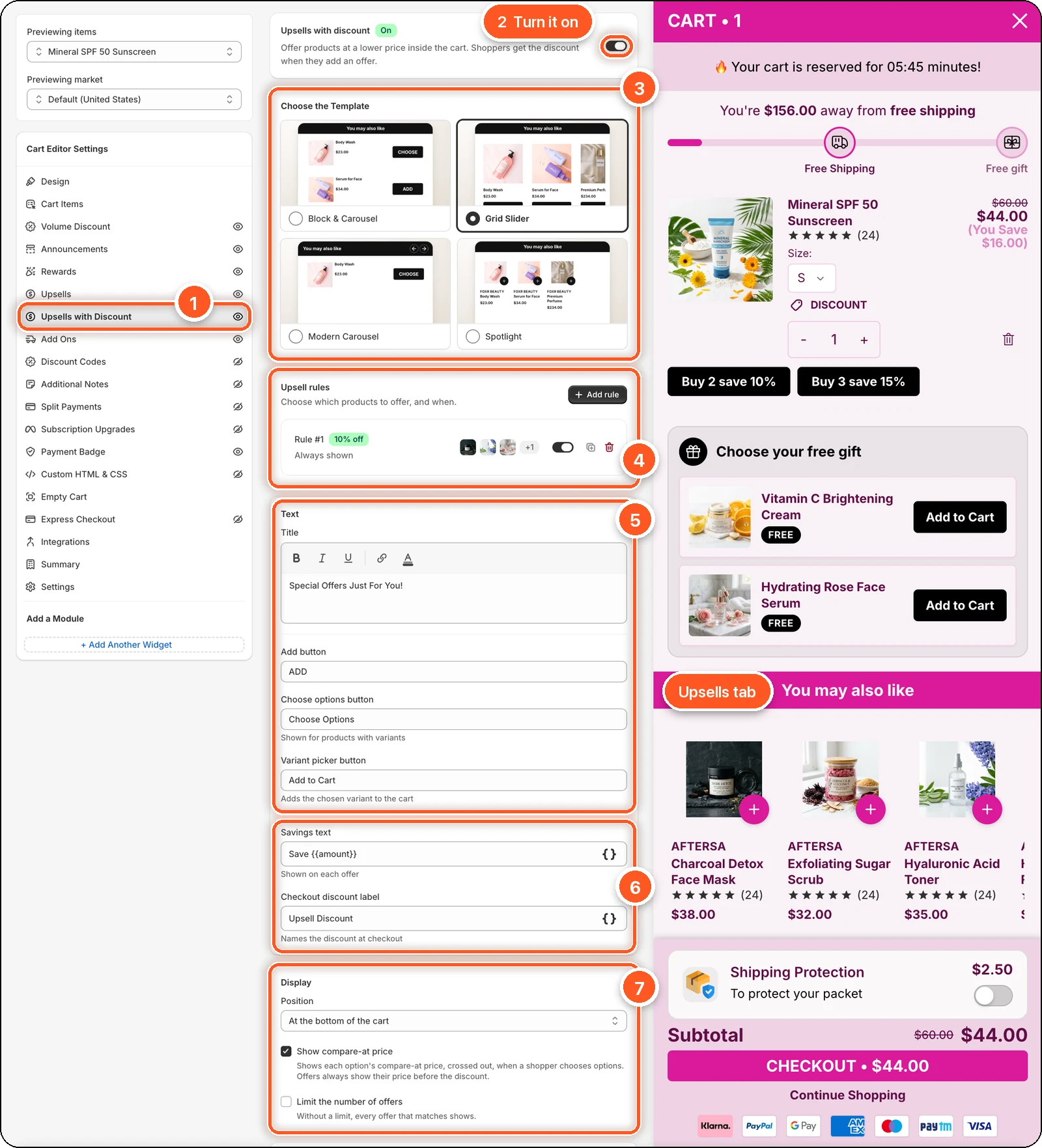
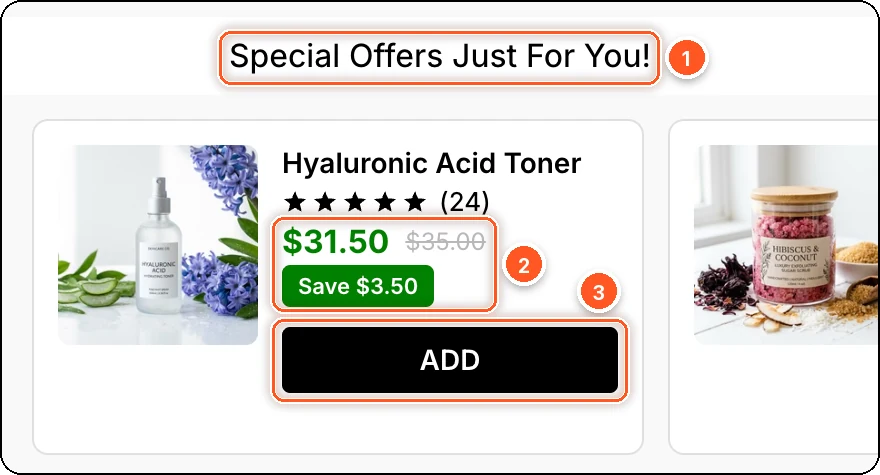
In this screenshot Upsells with Discount is switched on with the Grid Slider template and one rule: Rule #1, 10% off, Always shown. The You may also like section in the preview (marked "Upsells tab") comes from the separate Upsells tab. Your discounted offers sit further down, below it, because their Position is At the bottom of the cart. The close-up below shows what shoppers see.
| # | Section | What it's for |
|---|---|---|
| 1 | Upsells with Discount tab | Open this tab. The eye icon shows the offers are on. A crossed-out eye means they're off. |
| 2 | Upsells with discount switch | Turns the offers on or off. |
| 3 | Choose the Template | The same four layouts as Upsells. Grid Slider is picked here. |
| 4 | Upsell rules | Which products to offer, when, and at what discount. The green badge shows each rule's discount. |
| 5 | Text | The title and button labels. |
| 6 | Savings text and Checkout discount label | The saving shown on each offer, and the discount's name at checkout. |
| 7 | Display | Where the offers show, and how many. |
Below these are the Design and Custom template cards.
What shoppers see
| # | What shoppers see | Where it comes from |
|---|---|---|
| 1 | "Special Offers Just For You!" | Title |
| 2 | $31.50, with $35.00 crossed out, and "Save $3.50" | The rule's 10% off. The crossed-out price is the price before the discount. "Save $3.50" is the Savings text. |
| 3 | ADD | Add button |
Set up a discounted offer
Switch on Upsells with discount at the top.
Click Add rule and give the rule a name.
Under Display conditions, choose when to show the offer, or leave it empty to show it in every cart that has at least one other product.
Under Upsell products, click Select products. For each product, choose a discount: Percentage off, Amount off, or Fixed price. New products start at 10% off. Click Use the first product's discount for all to copy one discount to every product.
Click Save rule, then Save in the Shopify save bar.
Conditions you can use
Cart value, Product in cart, Collection in cart, Variant in cart, and Market. Customer and customer tag conditions aren't available here, because checkout can't check them before applying the discount.
Limit how many units get the discount
Limit how many units get the discount is on by default for new rules, with Discounted units per product set to 1. If a shopper adds three of an offered product, one is discounted and the other two are full price. Turn it off, or raise the number, to discount more.
Text
| Setting | What it's for | Default |
|---|---|---|
| Title | The heading over the offers. | Special Offers Just For You! |
| Add button | Button for products with one variant. | ADD |
| Choose options button | Button for products with variants. | Choose Options |
| Variant picker button | Button after picking a variant. | Add to Cart |
| Savings text | Shown on each offer. Use {{amount}} or {{percentage}}. | Save {{amount}} |
| Checkout discount label | The discount's name at checkout. Use {saved_amount} or {saved_percentage}. | Upsell Discount |
Watch the braces
Savings text uses double braces, like {{amount}}. Checkout discount label uses single braces, like {saved_amount}. With the wrong braces, shoppers see the raw text.
Display
- Position — Above cart items, Below cart items, or At the bottom of the cart (default).
- Layout — (Block & Carousel) Carousel or Stacked.
- Show compare-at price — on by default. It shows each option's compare-at price, crossed out, when a shopper chooses options. Offers always show their price before the discount.
- Limit the number of offers — off by default, so every matching offer shows. Turn it on and set Maximum offers; offers from rules higher in the list show first.
Good to know
- The discount is only for items added from the offer. If the shopper adds the same product from its product page, they pay full price.
- An offer can't unlock itself. The cart needs at least one other product for offers to show and for the discount to apply. The editor preview shows offers even with an empty cart, but your store doesn't.
- Discounts update when you save the live cart. On a draft, they start working when you publish it.
- Colour templates on the Design tab don't change this module. Set its colours in its own Design card.
- Want a second, separate set of discounted offers? Add one with Add a module.