
Rewards
Show a progress bar that unlocks free shipping, an order discount, or a free gift as the cart grows.
Where to find it: in the cart editor, click Rewards in the Cart Editor Settings list.
Rewards show shoppers how close they are to a prize, such as "You're $156.00 away from free shipping". Each prize is a tier that unlocks at a cart total or item count. You can have up to six tiers, for example free shipping at $50, 10% off at $100, and a free gift at $150.
The app applies the rewards at checkout for you, using two automatic discounts it creates in Shopify: Foxr Discount and Foxr Free Shipping.
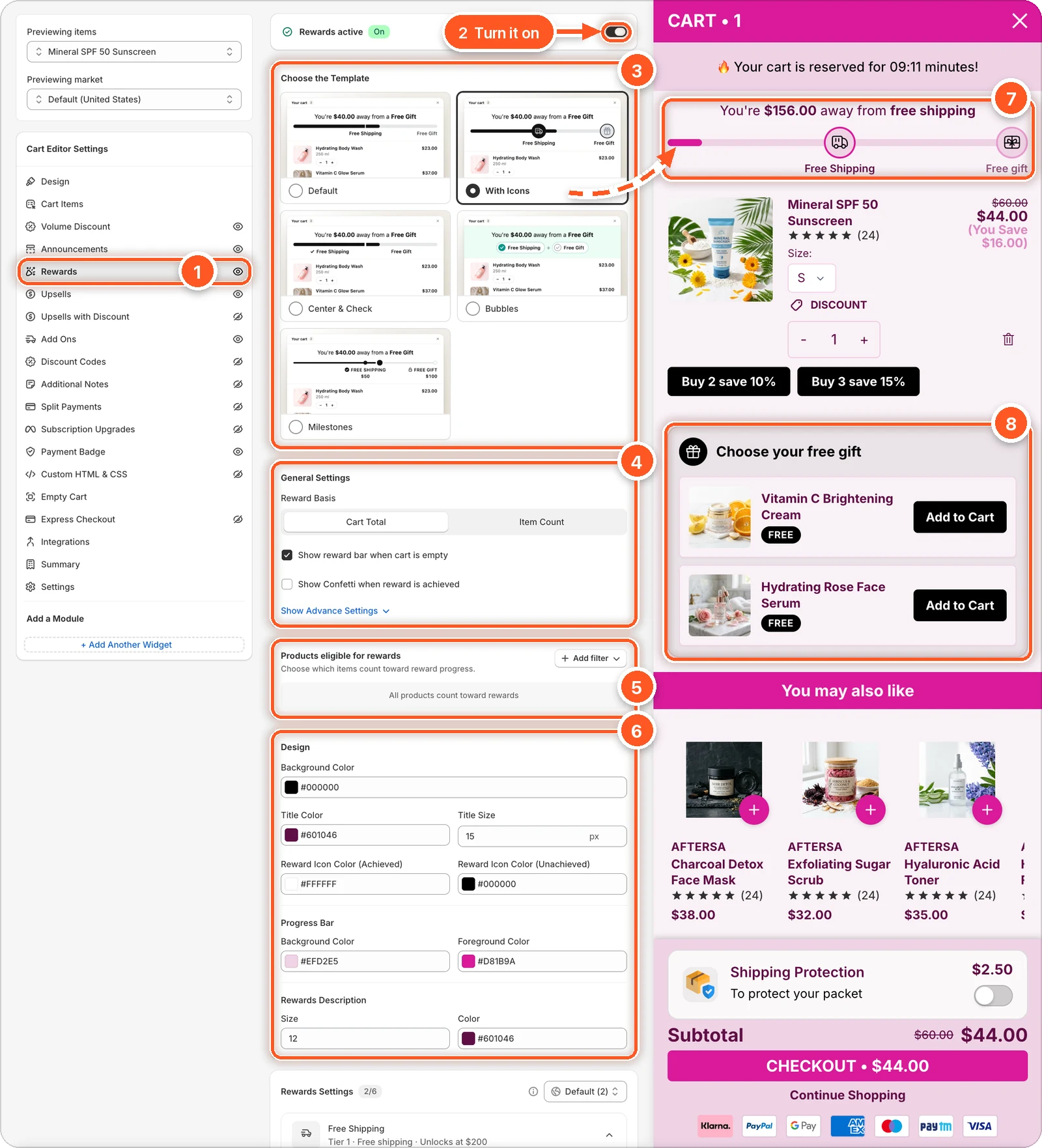
In this screenshot Rewards is switched on with the With Icons template. In the cart preview you can see the progress bar with an icon for each tier (7) and the Choose your free gift picker for the free gift tier (8). The editor always shows the gift picker. Shoppers only see it once they reach the gift tier ($500 here).
| # | Section | What it's for |
|---|---|---|
| 1 | Rewards tab | Open this tab. The eye shows the module is on. |
| 2 | Rewards switch | Turns the whole rewards module on or off. When it's on, the card reads Rewards active with an On badge. |
| 3 | Choose the Template | Five looks for the progress bar. With Icons is picked here. |
| 4 | General Settings | Count by cart total or item count, and a few display options. |
| 5 | Products eligible for rewards | Choose which products count toward progress. |
| 6 | Design | Colours and sizes of the bar and its labels. |
| 7 | Progress bar in the preview | The progress message, the bar, and an icon and label for each tier. |
| 8 | Free gift picker in the preview | Lets shoppers pick their free gift. The editor preview always shows it so you can style it. On your store it appears once the shopper unlocks the gift tier. |
Scroll down the settings to find Rewards Settings (your tiers), Other Settings, and Free gift settings.
Set up your first reward
Click Rewards in the sidebar and turn on the switch at the top. The badge changes to On and the card reads Rewards active.
Under General Settings, choose Cart Total (rewards unlock at an amount) or Item Count (rewards unlock at a number of items).
Scroll to Rewards Settings. A new cart already has one tier: free shipping at $200. Click it to open it.
Set Unlocks at to the amount you want, and check the Reward type.
Click Add reward tier for each extra reward, up to six.
Click Save. On the live cart, the checkout discounts update at the same time.
Choose the template
| Template | Looks like |
|---|---|
| Default | A slim bar with a label under each tier. |
| With Icons (default) | An icon on the bar for each tier that fills in when it unlocks. |
| Center & Check | A segmented bar with each label centred in its segment and ticked off when unlocked. |
| Bubbles | Compact chips that tick off as they unlock. Great for % off rewards. |
| Milestones | A thin track with locked and unlocked milestones and the spend each needs. |
Choosing a template resets the bar's colours and sizes, and each tier's icon.
General Settings
| Setting | What it does | Default |
|---|---|---|
| Reward Basis | Cart Total counts money spent; Item Count counts items. | Cart Total |
| Show reward bar when cart is empty | Keep the bar visible with nothing in the cart, as a nudge. | On |
| Show Confetti when reward is achieved | A burst of confetti when a tier unlocks. | Off |
Click Show Advance Settings for more:
- Position of Free Gift Items — where free gifts sit in the item list: Natural Order, Top of Cart, or Bottom of Cart.
- Reward Banner Position — where the bar sits: Above Cart Items (default), Below Cart Items, Under Upsells, or Above Checkout Section.
- Space rewards by value — place tiers along the bar by their amount instead of evenly. Rewards at $50 and $60 then sit close together.
- Customer Tags to exclude from Rewards — customers with these tags don't get rewards, for example
b2borwholesale. Type a tag, then a comma, to add it. Only works for logged-in customers. - Show free gift Text instead of price — show a word like "Free Gift" instead of $0.00 on gift lines.
End each tag with a comma
In Customer Tags to exclude from Rewards, a tag is only added when you type a comma after it. A tag without a comma isn't saved.
Products eligible for rewards
By default, every product counts toward progress. To change that, click Add filter:
- Product filter — pick products, then choose Include (only these count) or Exclude (these don't count).
- Collection filter — the same, for collections. Collections must be available on your Online Store.
With both filters, a product has to pass both to count.
Rewards Settings: your tiers
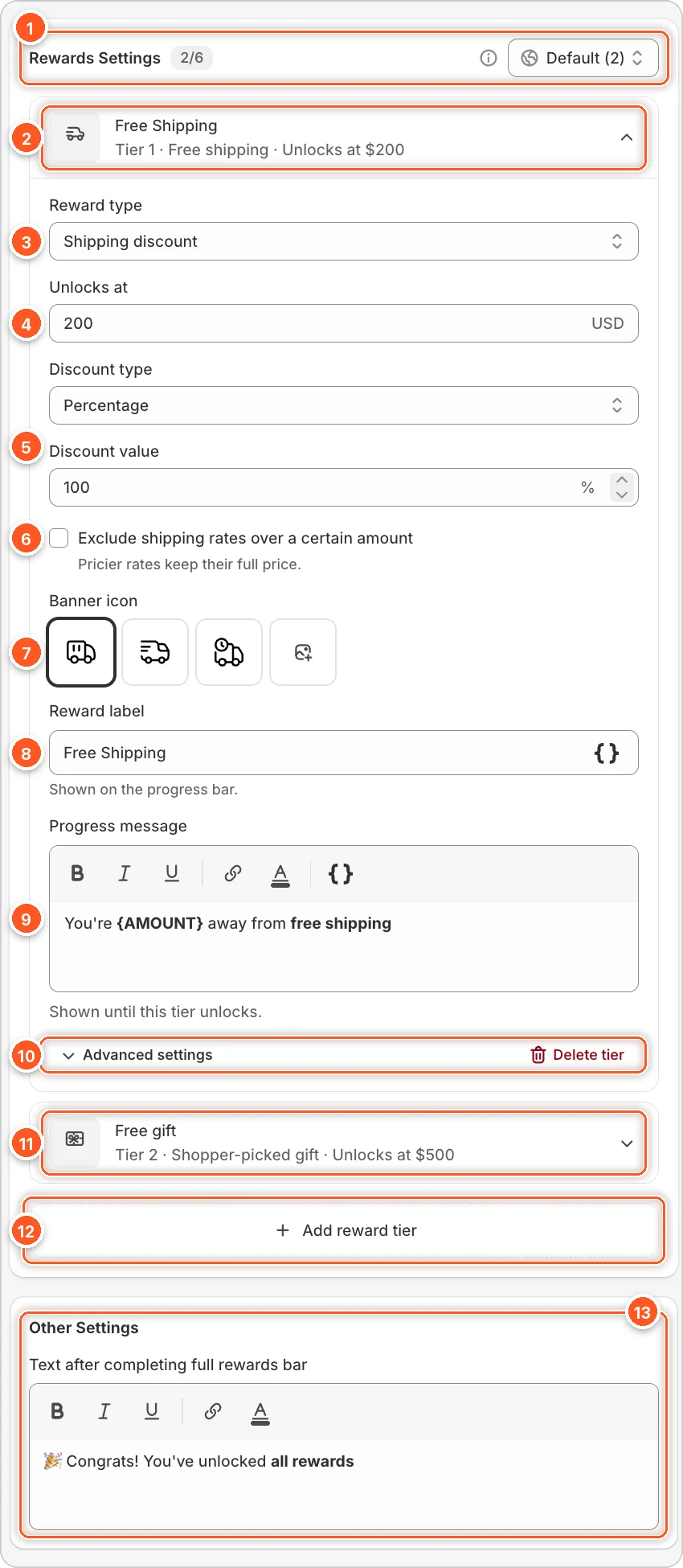
Here Tier 1 (free shipping at $200) is open, and Tier 2 (a free gift the shopper picks, at $500) is closed.
- Rewards Settings — 2/6 means two of six possible tiers are used. The globe menu, here Default (2), chooses which market's tiers you're editing (see Rewards per market).
- The tier — its summary reads "Tier 1 · Free shipping · Unlocks at $200". Click it to open or close it.
- Reward type — what the shopper gets. See Reward types below.
- Unlocks at — the cart total (or item count) that unlocks it. Whole numbers only.
- Discount type and Discount value — Percentage or Fixed amount, and how much. 100% off shipping means free shipping.
- Exclude shipping rates over a certain amount — (shipping rewards only) pricier rates, like express, keep their full price.
- Banner icon — the icon on the bar (With Icons template). Click Add custom icon, the last tile, to upload your own.
- Reward label — the short name on the bar, like "Free Shipping".
- Progress message — shown until this tier unlocks. Keep
{AMOUNT}(or{COUNT}for item count) in the text: it's replaced with what's left to spend, for example "You're $156.00 away from free shipping". - Advanced settings and Delete tier — under Advanced settings, Discount application is Automatic (the app applies the discount) or Manual (you create the discount in Shopify yourself). Delete tier removes the tier straight away.
- Another tier — closed tiers show their summary, here "Tier 2 · Shopper-picked gift · Unlocks at $500". Click to open.
- Add reward tier — adds a new tier, up to six.
- Other Settings — Text after completing full rewards bar, shown once every tier is unlocked. The default is "🎉 Congrats! You've unlocked all rewards".
Reward types
| Reward type | What the shopper gets |
|---|---|
| Shipping discount | Free or cheaper shipping. |
| Order discount | A percentage or fixed amount off the order. |
| Free gift, added automatically | A gift product added to the cart for them. |
| Free gift, shopper picks | A choice of gifts; the shopper adds the one they want. |
For a gift tier, click Select product to choose the gift, and Add gift product to offer more than one. You can't mix the two gift types across tiers. Once one tier uses one gift type, the other type can't be picked.
New tiers start as free shipping
Add reward tier always adds a shipping tier. Change its Reward type, label, and message to what you want. If you count by item count, swap {AMOUNT} for {COUNT} in its progress message.
Rewards per market
If you sell in several markets, each one can have its own tiers.
- In Rewards Settings, open the globe menu and pick a market. The preview switches to that market too.
- Click Add reward tier to give it its own tiers. A market with no tiers uses the Default tiers.
- Tick Use market currency to enter amounts in that market's currency. Otherwise, amounts are converted from your store currency with Shopify's rates.
Free gift settings
When a tier is a gift, a card for gifts appears at the bottom of the tab. For shopper picks gifts it's called Free gift settings:
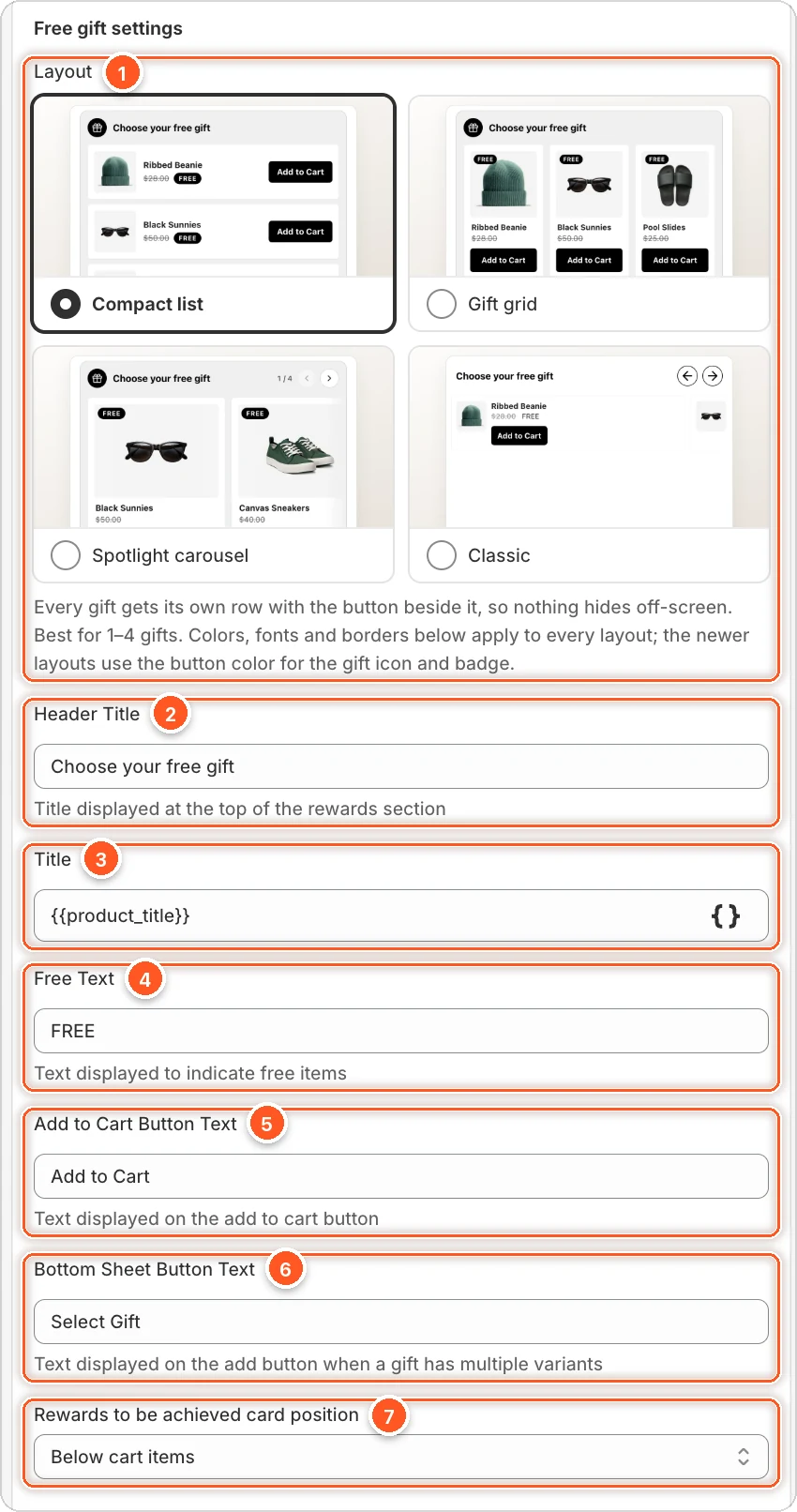
- Layout — Compact list (best for 1–4 gifts), Gift grid (2–6), Spotlight carousel (5 or more), or Classic (side-scrolling cards).
- Header Title — the heading, "Choose your free gift" by default. It's the title of the gift picker you saw in the preview (8 in the first screenshot).
- Title — each gift's name.
{{product_title}}uses the product's title. - Free Text — the badge on each gift, like "FREE".
- Add to Cart Button Text — the button on each gift.
- Bottom Sheet Button Text — the button when a gift has several variants, like "Select Gift".
- Rewards to be achieved card position — where the gift card sits: Above reward banner, Above cart items, Below cart items (default), or At absolute bottom.
Further down are the card's colours, image size, borders, and button style.
For automatic gifts the card is called Show rewards to be achieved. Switch it on to show shoppers the gift they're working toward, with a message like "Add $20.00 more to get Free Gift with this order".
Good to know
- Discounts update when you save the live cart. Saving a draft doesn't change checkout. A draft's rewards start working when you publish it.
- Manual tiers only show progress. If a tier's Discount application is Manual, create a matching discount in Shopify yourself.
- Shopify allows 25 active automatic discounts. If your store is at the limit, saving fails with We couldn't generate your discount code.
- Test it on your store. Add products until a tier unlocks and go to checkout to see the discount applied.