
Cart Items
Choose how each product line in the drawer looks, and whether it shows unit prices, a variant picker, and savings.
Where to find it: in the cart editor, click Cart Items in the Cart Editor Settings list.
Each product in the cart is shown as a line: image, title, variant, price, quantity buttons, and a delete icon. This tab decides how those lines look and what extra information they show. It's always on.
In this screenshot Let shoppers change the variant and Show savings on each item are both ticked. The cart line in the preview now has a Size dropdown (5) and (You Save $16.00) under the price (6).
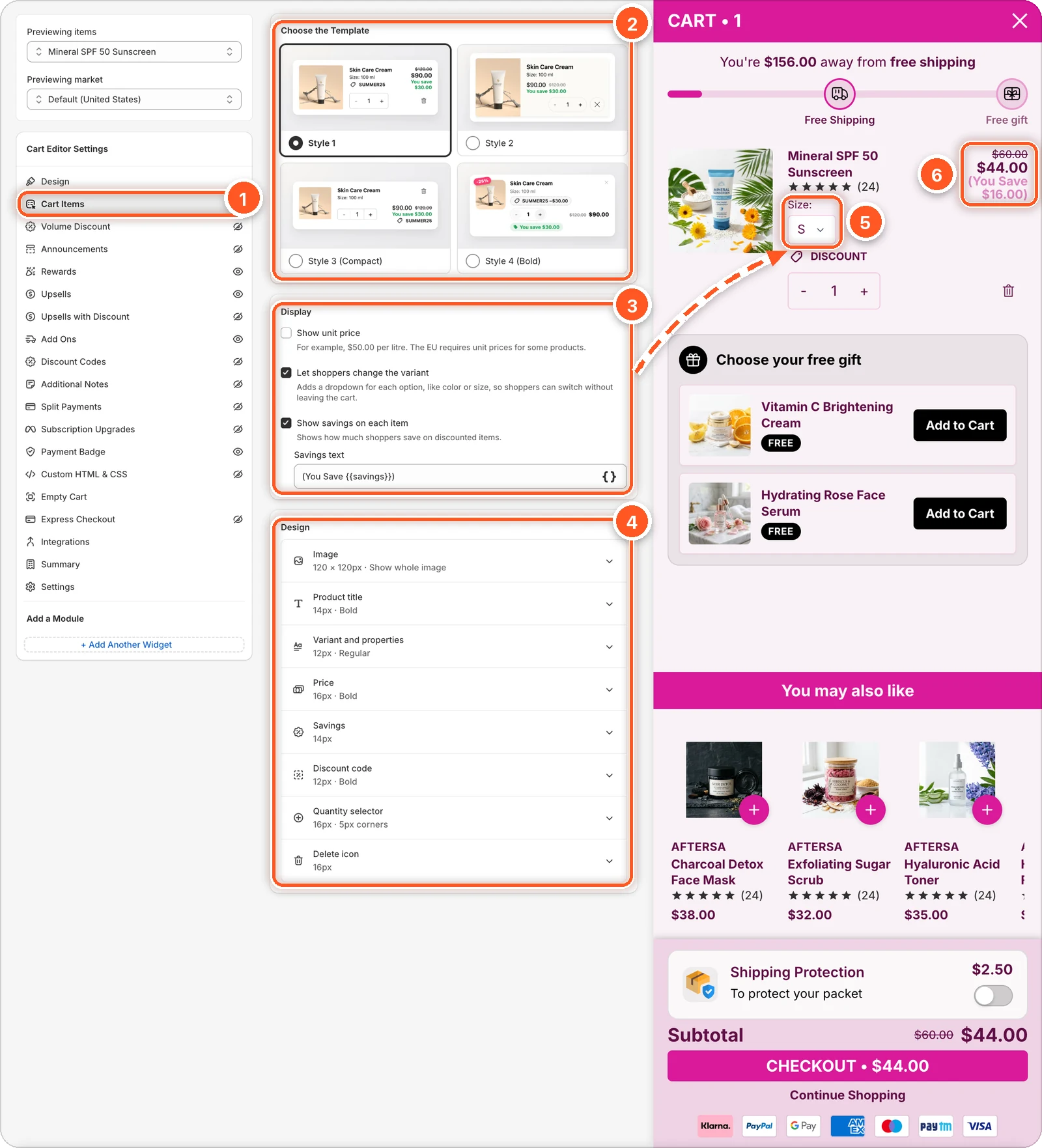
| # | Section | What it's for |
|---|---|---|
| 1 | Cart Items tab | Open this tab in the sidebar. |
| 2 | Choose the Template | Pick one of four ready-made line layouts. |
| 3 | Display | Show unit prices, a variant picker, and savings on each line. |
| 4 | Design | Sizes, colours, and fonts for each part of the line. |
| 5 | Size dropdown in the preview | The variant picker. It shows because Let shoppers change the variant is ticked. |
| 6 | Price and savings in the preview | (You Save $16.00) shows under the price because Show savings on each item is ticked. |
Choose a template
| Template | Looks like |
|---|---|
| Style 1 | The default: a clean line with image, details, and price. |
| Style 2 | Adds small icons for a friendlier look, inside a card. |
| Style 3 (Compact) | A smaller image, so more items fit on screen. |
| Style 4 (Bold) | Built to sell: a % off sticker, a savings pill, and big tap targets. |
Click a template to apply it. The preview updates straight away.
Templates reset the line's design
Picking a template replaces every setting in the Design section below with that template's values. Choose your template first, then adjust the design. A colour template in the Design tab also recolours the lines.
Display options
Tick a box to turn an option on. Some options show a text field underneath when ticked.
| Option | What shoppers see | Text you can change |
|---|---|---|
| Show unit price | The price per unit, such as "$50.00 per litre". The EU requires this for some products. | Unit price text, default {{unit_price}} / {{reference_value}} {{reference_unit}} |
| Let shoppers change the variant | A dropdown for each option, like colour or size, so shoppers can switch without leaving the cart. | — |
| Show savings on each item | How much the shopper saves on a discounted item. | Savings text, default (You Save {{savings}}) |
Unit prices only show for products that have unit price details set in Shopify.
Design
The Design card is a list of parts. The grey line under each name sums up the current values, such as 120 × 120px · Show whole image. Only one part is open at a time.
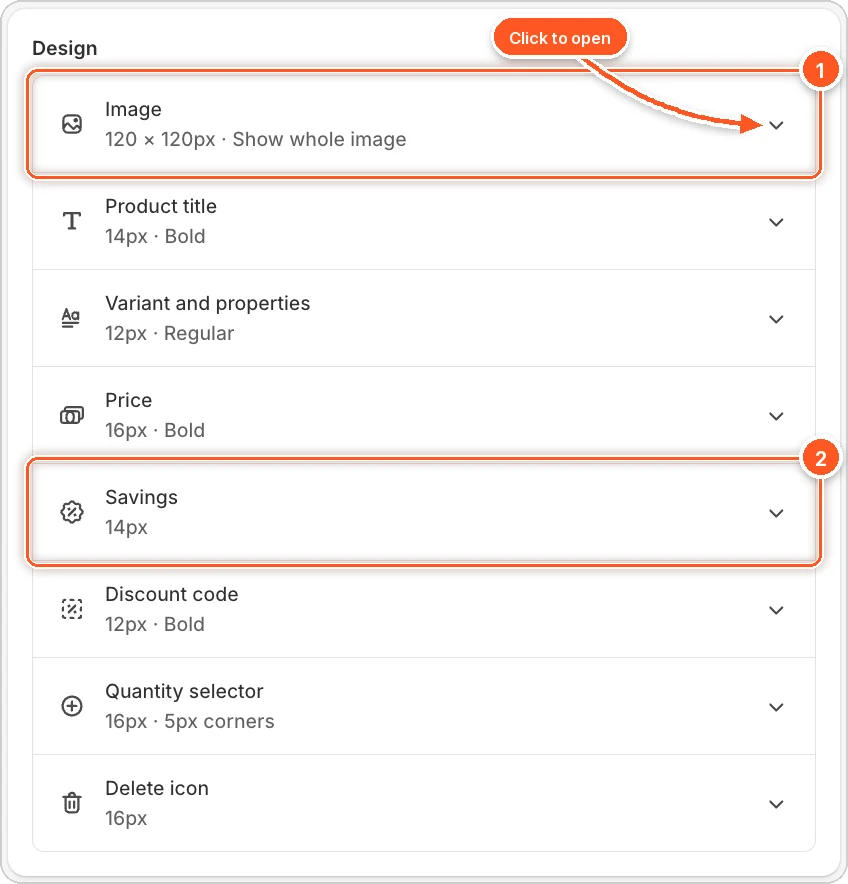
- Click a row to open it. For example, open Image to change the width and height (default 120 × 120 px), the image fit, the border, and the corner radius.
- Savings only appears in the list when Show savings on each item is ticked.
Image fit has three choices: Show whole image (nothing is cut off), Fill and crop (fills the box, may crop the edges), and Stretch to fill.
All the parts you can style:
| Part | Settings |
|---|---|
| Card (Style 2 only) | Background colour, corner radius. |
| Image | Width, height, image fit, border, corner radius. Style 4 adds an image background. |
| Savings badge (Style 4 only) | Text and background colour of the % off sticker. |
| Product title | Colour, font size (14), font weight (Bold). |
| Variant and properties | Colour, font size (12), font weight (Regular). |
| Price | Final price (16, Bold) and Original price (12, Regular). |
| Unit price | Shown when Show unit price is on. |
| Savings | Colour and font size (14). Shown when Show savings on each item is on. |
| Discount code | The discount code tag on the line (DISCOUNT in the preview): colour, font size (12), font weight (Bold). Not in Style 2. |
| Quantity selector | Text colour, font size (16), border colour, corner radius (5). |
| Delete icon | Colour and size (16). |
Font weight goes from Thin to Black. Regular is normal text and Bold is heavy.
Check your changes
Click Previewing items at the top left to load your own products into the preview. Use a product with variants and one on sale to see every part of the line.