
Turn features on and off
Switch any part of the cart drawer on or off from its tab, check it in the preview, and save so shoppers see it.
Most tabs in the cart editor control one feature of the cart drawer, like volume discounts, an announcement bar, or upsells. When a feature is on, shoppers see it in the cart once you save. When it's off, shoppers don't see it, and its settings stay in the tab for later.
Where the switch is, and how to read it
| What you see | Where | What it means |
|---|---|---|
| The switch | The top card of the tab, on the right | Click it to turn the feature on or off. |
| On / Off badge | Next to the feature's name in that top card | Whether the feature is on right now. |
| Eye | Next to the tab in Cart Editor Settings | The feature is on. |
| Crossed-out eye | Next to the tab in Cart Editor Settings | The feature is off. |
| Unsaved changes | Shopify's save bar at the top of the admin | You changed something. Click Save to make it live, or Discard to drop it. |
The eye is a status light, not a switch
Clicking the eye doesn't turn anything on or off. Clicking anywhere on the row just opens the tab. Use the switch inside the tab.
Turn a feature on
In Cart Editor Settings, click the tab for the feature. A crossed-out eye next to it means it's off.
Click the switch in the top card. The badge changes from Off to On, and the eye in the sidebar opens.
Set the feature up if it needs it. Some features show nothing until they have something to show, such as an offer or a product. See What each switch turns on.
Check the live preview on the right. It shows your unsaved changes as you go.
Click Save in the Shopify save bar. On the live cart, shoppers see the feature straight away. On a draft, they see it once you publish the draft.
Example: Volume Discount, before and after
In these screenshots, Volume Discount goes from off to on, with one offer for all products: buy 2 save 10%, buy 3 save 15%. Look under the sunscreen in the preview (4): the Buy 2 save 10% and Buy 3 save 15% buttons only appear once it's on.
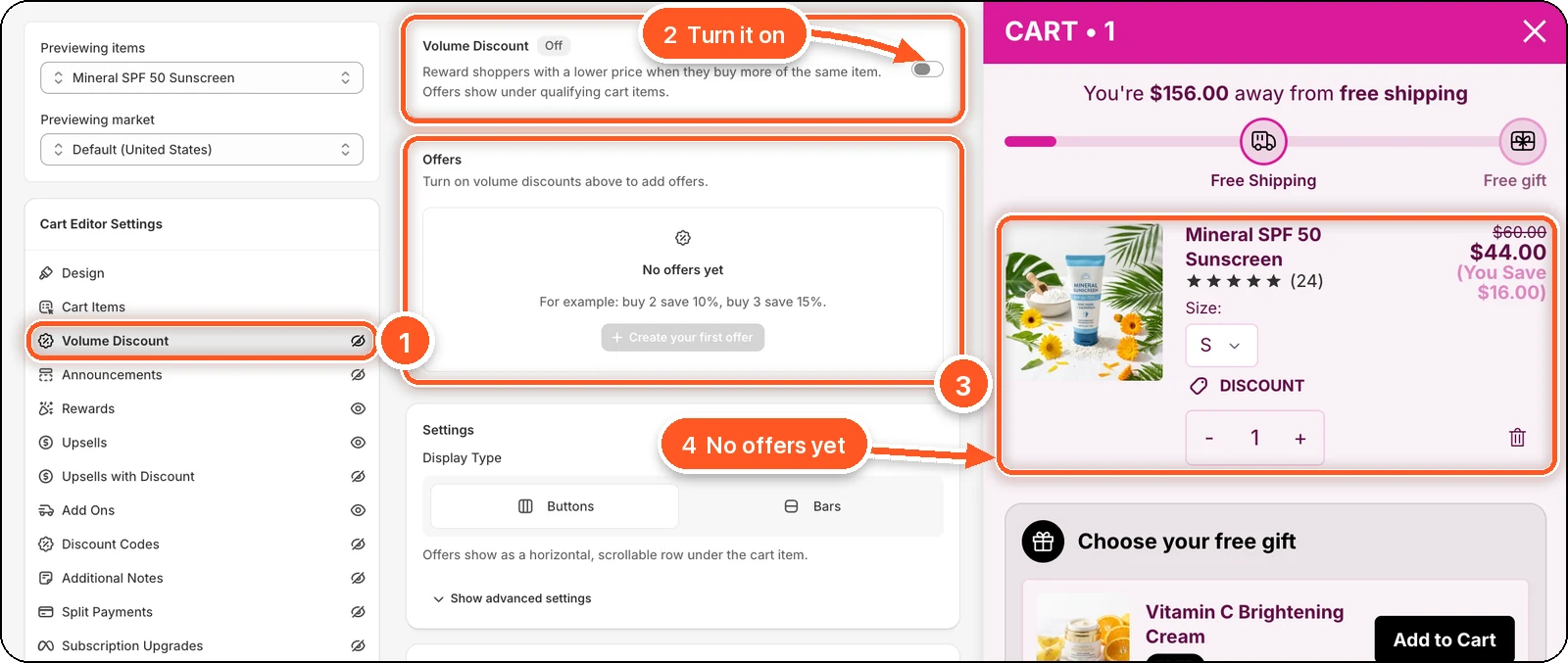
| # | What it is | Before: off | After: on |
|---|---|---|---|
| 1 | Volume Discount in the sidebar | Crossed-out eye. | Eye. |
| 2 | The top card with the switch | Off badge and the switch is off. | On badge and the switch is on. |
| 3 | Offers | No offers yet. Create your first offer is greyed out, because you can only add offers while it's on. | Add offer works. The screenshot has one offer, Offer 1 · All products. |
| 4 | The cart item in the preview | No offers under the item. | Buy 2 save 10% and Buy 3 save 15% under the item. |
What each switch turns on
Each of these tabs has a switch at the top. On a new cart, they all start off.
| Tab | When it's on, the cart shows | Also needs |
|---|---|---|
| Volume Discount | "Buy 2 save 10%" offers under qualifying items. | At least one offer. |
| Announcements | A message bar near the top, with an optional countdown. | Nothing. |
| Rewards | A progress bar toward free shipping, a discount, or a free gift. | Nothing. A new cart has a free shipping tier. |
| Upsells | Recommended products at full price, each with an add button. | Nothing. The default, Related (using AI), picks products for you. Manual needs rules with products. |
| Upsells with Discount | Products offered at a lower price. | At least one rule with products. |
| Add Ons | One-tap extras, like shipping protection or gift wrap. | Shipping protection switched on, or a product add-on. |
| Discount Codes | A discount code field, or a Coupons and offers banner. | Nothing. |
| Additional Notes | A row that opens an order note box. | Nothing. |
| Split Payments | A line like "Or 4 installments of $11.00 with Afterpay". | Nothing. |
| Subscription Upgrades | An upgrade link or button on items that have subscription plans. | A subscription app that adds plans to your products. |
| Payment Badge | Payment icons at the very bottom of the cart. | Icons picked from the library, or your own image. |
| Custom HTML & CSS | Your own HTML at a spot you choose, plus your CSS. The switch card is called Custom HTML. | Your code. |
| Express Checkout | Express checkout buttons under the checkout button. The switch card is called Accelerated Checkout Buttons. | A snippet in your theme, and express payment methods turned on. The buttons never show in the editor preview. |
Tabs that are always on
These tabs have no main switch and no eye. They always apply, but some have smaller switches or tick boxes inside. Widgets you add under Add a Module are different: each one gets its own eye and switch.
| Tab | What you can turn on or off inside it |
|---|---|
| Design | Nothing. It sets the look of the whole drawer. |
| Cart Items | Tick boxes under Display, like Show savings on each item. |
| Empty Cart | The empty state always shows when the cart has no items. Recommendations has its own switch. |
| Integrations | Each integration has its own switch. Razorpay Magic Checkout App has none. |
| Summary | Tick boxes like Show continue shopping button? and Show terms and conditions. |
| Settings | Tick boxes like Open cart drawer on add to cart and Show notification on add to cart. |
| Add a Module | A guarantee strip, promo banner, or delivery estimate starts on. A second Upsells with Discount starts off. |
Turn a feature off
Open the feature's tab.
Click the switch so the badge says Off. The eye in the sidebar is crossed out.
Click Save.
The feature disappears from the cart once you save. Its settings stay in the tab, so you can switch it back on later without setting it up again. For Volume Discount and Upsells with Discount, saving the live cart with the switch off also stops their discount at checkout.
Good to know
- Discard undoes the switch. Changed your mind before saving? Click Discard in the save bar and confirm. The editor goes back to your last save. See Save, discard, and publish.
- Switch first, then set up. In Volume Discount, Create your first offer and Add offer only work while the switch is on.
- Shipping protection turns on Add Ons. Switching on Shipping protection also switches on the whole Add Ons feature. Switching Add Ons off hides shipping protection too, even if its own badge says On.
- Only features that are on can be translated. Translate lists texts only from features that are switched on.