
Settings
Set the drawer's width and slide direction, what happens on add to cart, and how the app's discounts combine with others.
Where to find it: in the cart editor, click Settings at the bottom of the Cart Editor Settings list.
This tab holds the drawer's behaviour: its size and direction, what happens when a shopper adds a product, and how the app's discounts stack with your other Shopify discounts. It's always on.
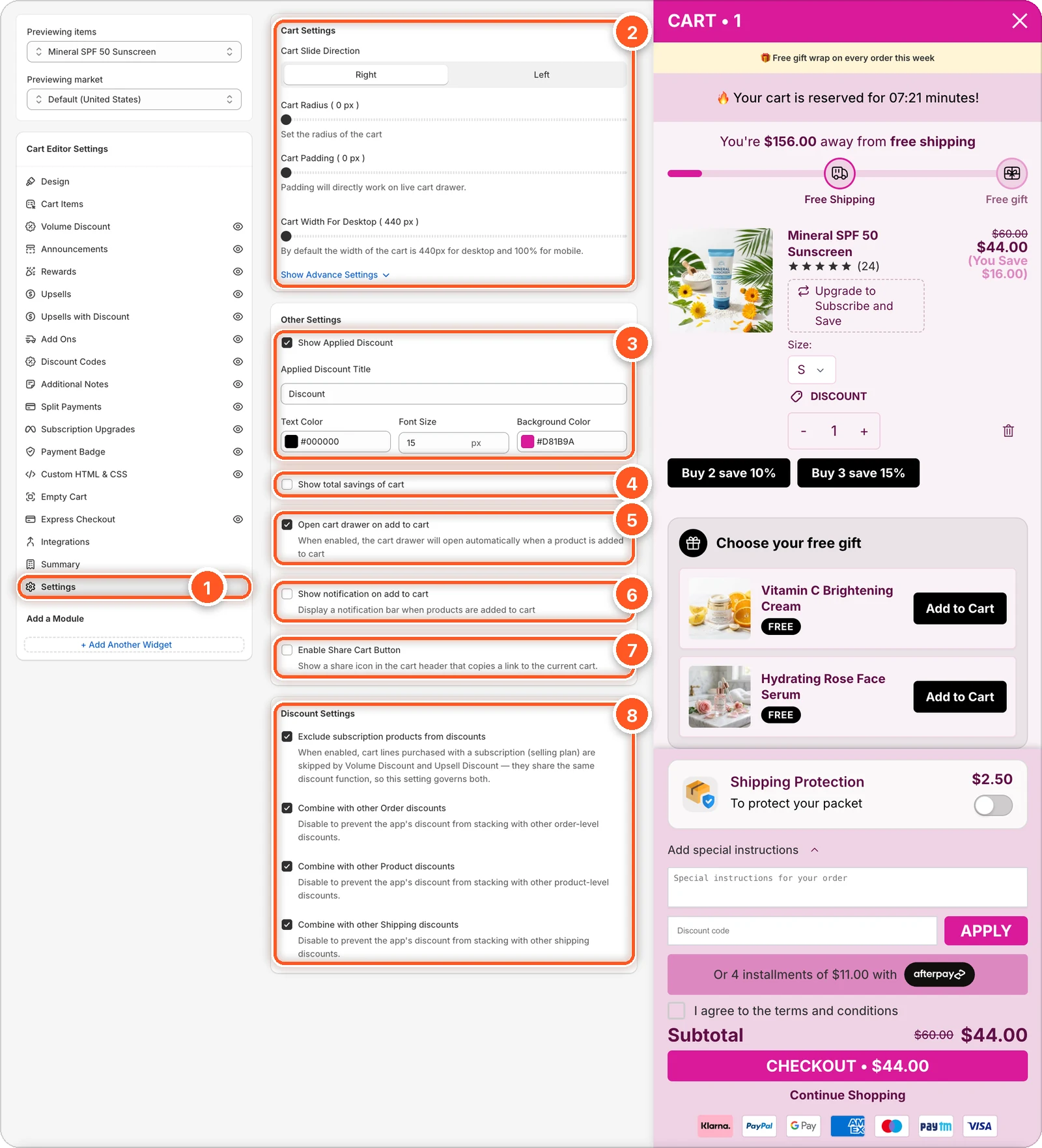
This screenshot shows every setting at its default: Show Applied Discount (3) and Open cart drawer on add to cart (5) are ticked, and so are all four Discount Settings (8). Settings has no on/off switch, and with these defaults nothing extra appears in the cart preview on the right.
| # | Setting | What it's for |
|---|---|---|
| 1 | Settings tab | Open this tab in the sidebar. It has no eye icon because it's always on. |
| 2 | Cart Settings | Slide direction, rounding, padding, and width. Click Show Advance Settings for more. |
| 3 | Show Applied Discount | Show discounts applied to the cart, with their own title, colours, and size. |
| 4 | Show total savings of cart | Show how much the shopper saves in total. |
| 5 | Open cart drawer on add to cart | Open the drawer when a product is added. |
| 6 | Show notification on add to cart | Show a pop-up message instead of, or as well as, opening the drawer. |
| 7 | Enable Share Cart Button | Let shoppers copy a link to their cart. |
| 8 | Discount Settings | How the app's discounts stack with your other Shopify discounts. |
Cart Settings
| Setting | What it does | Default |
|---|---|---|
| Cart Slide Direction | Right or Left. Left suits right-to-left languages like Arabic and Hebrew. | Right |
| Cart Radius | Rounds the drawer's corners, 0 to 30 px. You'll see it in the preview too. | 0 |
| Cart Padding | Space around the drawer, 0 to 30 px. Only visible on your store, not in the preview. | 0 |
| Cart Width For Desktop | 440 to 850 px. On phones the drawer is always full width. | 440 |
Advance Settings
Click Show Advance Settings for options that help with unusual themes and edge cases:
- Custom query selectors — if the drawer doesn't open from your theme's add-to-cart or cart buttons, or the cart count doesn't update, enter your theme's CSS selectors here, such as
#custom-idor.custom-class. Type a comma after each one to add it. There are four: Add to Cart Button, Open Cart, Count Bubble, and Hide Theme Cart. - Use Compare At Price for savings calculation — on by default. Savings include the gap between a product's compare-at price and its price. Turn it off to count only cart discounts.
- Use line price for order discount display — show each item's price after order-level automatic discounts.
- Show image URLs in line item properties — show item properties that are image links as images.
- Image Optimization — lower settings load product images faster; higher ones look sharper. Default 1 of 6 (fastest).
Not sure about selectors?
Leave the custom query selectors empty unless the drawer doesn't work with your theme. Contact support and we'll find the right ones for you.
Other Settings
Show Applied Discount
On by default. Shows discounts applied to the cart with the title Discount. Change the Applied Discount Title, text colour, font size (15), and background colour.
Show total savings of cart
Shows the shopper's total savings.
- Total Saving Bar Display Type: Above Subtotal (a line above the subtotal) or Inline.
- Total saving text: default "Your Savings". In Inline, use
{{totalSavings}}to place the amount.
Changing the display type replaces the text with that type's default, so choose the type first.
Open cart drawer on add to cart
On by default. When a shopper adds a product anywhere on your store, the drawer slides open.
Show notification on add to cart
Shows a short message, like "Added to Cart", when a product is added. Set its Notification Title, Notification Description, Duration (seconds) (default 5), Notification Position (Top Right, Top Left, Bottom Right, or Bottom Left), and Notification Background Color.
Enable Share Cart Button
Adds a share icon to the drawer's header. Tapping it copies a link to the shopper's cart, so they can send it to someone or finish on another device.
- Tooltip Text, Notification Title, and Notification Description — the texts around the button. The description defaults to "Link copied to clipboard!".
- Share URL Base — where the link opens. The default
{{shop}}/opens your home page;{{shop}}/collections/saleopens a collection.
Discount Settings
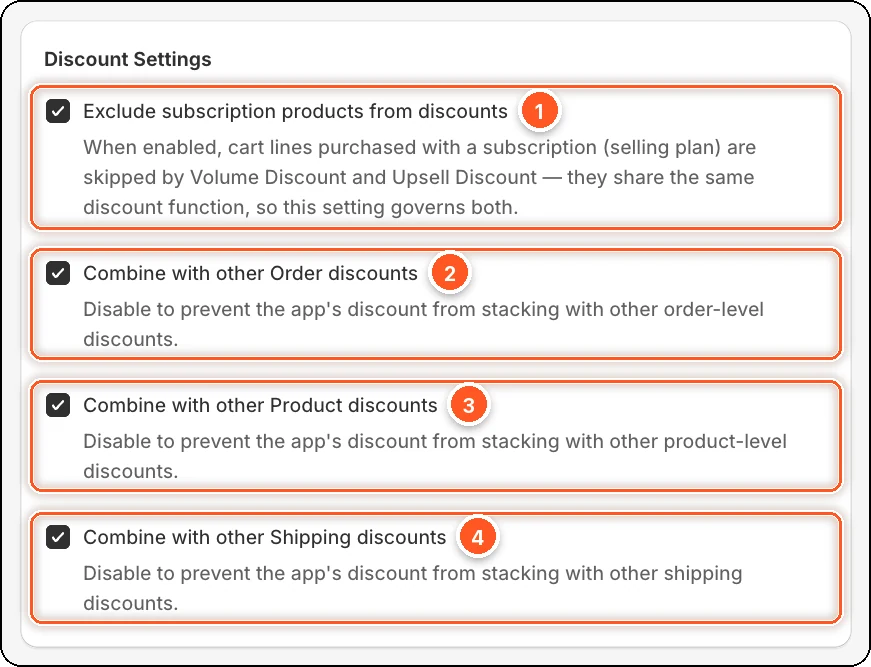
- Exclude subscription products from discounts — on by default. Items bought on a subscription don't get volume discounts or upsell discounts.
- Combine with other Order discounts — the app's discount can stack with your other order discounts.
- Combine with other Product discounts — the same, for product discounts.
- Combine with other Shipping discounts — the same, for shipping discounts.
All four are on by default. Untick one to stop the app's discount stacking with that kind of discount.
These settings reach checkout when you save the live cart. On a draft, they apply once you publish it.